Online payments
- It lets clients pay online for a booking or a studio plan, with Stripe or PayPal.
- You find takings and orders in Finance > Invoicing, under Payments and Studio plan orders.
- The most common task: check the orders in Requires review and, if needed, refund a payment.
What it is
Module for collecting the price of a booking or the purchase of a studio plan online. The client pays on the secure Stripe or PayPal page: Flo does not store card data and treats the payment as valid only once Stripe or PayPal confirms it.
After payment, Flo creates the booking or activates the plan, and issues the electronic invoice via the Invoicing module.
The payment service (Stripe or PayPal) is connected by the Flò team: you don't pick it in the app.
When it is visible
The module is switched on by request: if you don't see the payment tabs, write to support. Selling studio plans online also needs the Subscriptions module.
For a payment to be possible, three conditions are needed:
- the Flò team has connected the payment service and invoicing is set up;
- the activity or plan has online sale enabled and a valid price;
- the client is signed in.
In the Invoicing section, administrators see Payments, shown whenever the Bookings module is on, even with online payments off, and Studio plan orders, shown only when online payments are active.
Main sectors
- Fitness
- Wellness
- Appointment-based services
- Enterprise configurations with paid activities
Dependencies
Can activate or require:
Enabling payments
On the administration side:
-
Check the prerequisites in Invoicing → Settings → Prerequisites for online payments: payment provider, e-invoicing credentials, seller's tax data.
-
For each activity, open Services and in the Online payment panel:
- enter Gross price, VAT rate and, if the rate is 0, the VAT nature (exemption);
- choose the mode in Online payment:
Mode What happens Off Clients book with a plan or entries; payment is recorded at the studio. Optional: online or at the studio Clients choose to pay online now or at the studio on the day of the lesson. Required before booking The booking is confirmed only after the online payment. Without a gross price you cannot turn on online payment: Flo tells you when saving.
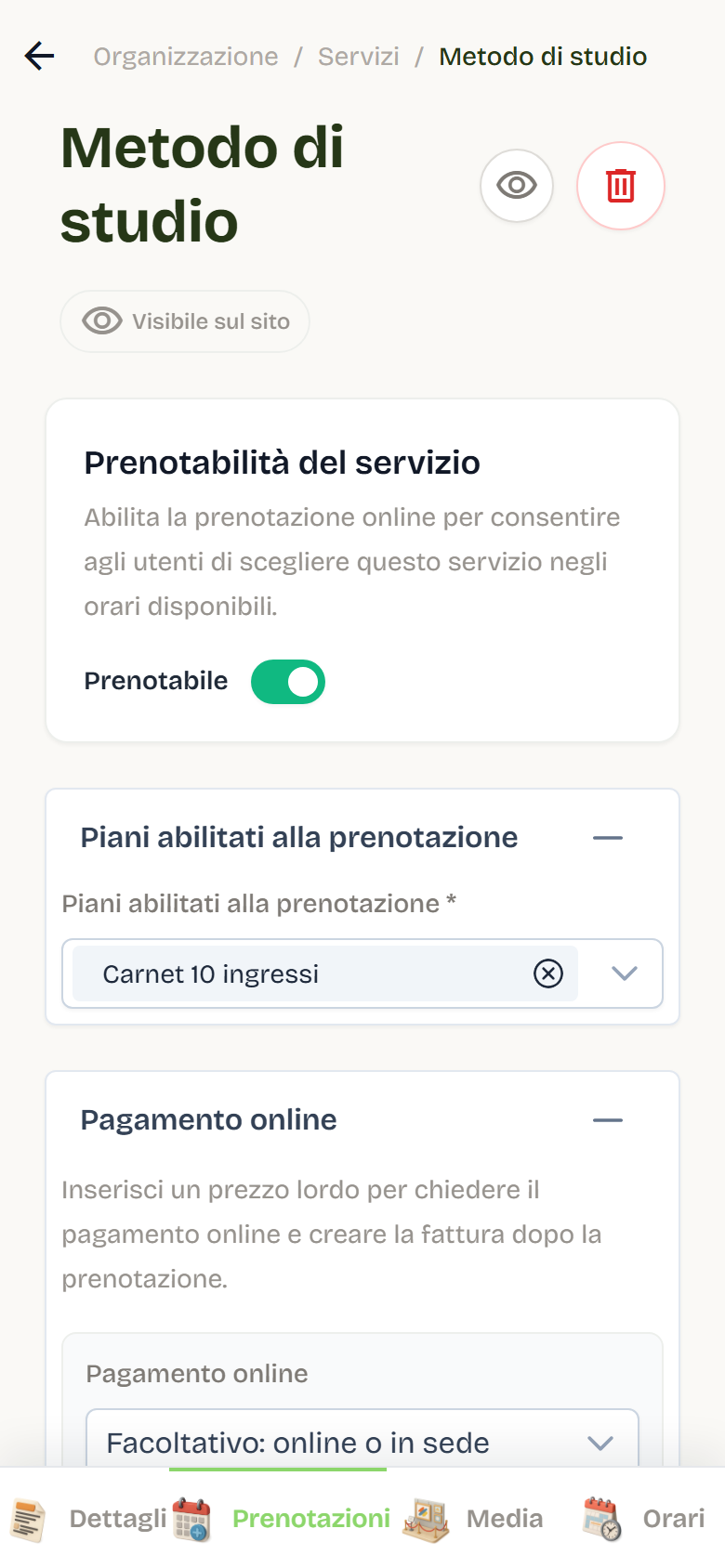
- For each studio plan, open Studio plans and enable Online sale active. The plan must have a price, a VAT rate, and at least one linked activity.
Only bookings made for yourself can be paid online: payment on behalf of another user stays on the traditional flow.
Paying for a booking
- In Book choose an activity with online payment: Online price appears with the amount.
- Select the slot and confirm. With the Optional mode the client chooses between Pay online now and Pay at the studio; with Pay at the studio the booking is confirmed right away and staff collect from the Attendance and payments register. Online payment handles one booking at a time: if you already have a lesson in the cart, confirm it or empty it.
- The Invoice details window opens: name or company name, VAT number, tax code, address, postal code, city, province, country, PEC, and SDI recipient code. Fields are pre-filled from user data when available. At minimum, the tax code or VAT number with full name and address is required.
- Select Continue to payment: Flo creates the order, temporarily locks the slot, and opens the provider checkout (by default the lock lasts 30 minutes).
- Pay on the checkout. Flo does not store card data.
On return from checkout, the page shows the status:
| Message | Meaning |
|---|---|
| Payment received. Booking confirmed. | Booking created. |
| Payment received. Booking confirmation in progress. | Payment acquired, booking being finalized. |
| Payment not yet completed. | The provider has not confirmed yet. |
| Payment failed. | No confirmed charge. |
| The payment session has expired. | The slot has been released. |
| Payment received. Staff must complete the verification. | Case to check manually. |
When the booking is confirmed, you find it in your account and the invoice is sent by email. If payment succeeds but the slot is no longer available, Flo refunds the payment.
Buying a studio plan
- In the Account → My subscriptions area, the Available studio plans section appears, with duration, entries, booking quota, and VAT.
- Select Buy plan.
- Choose the Start date (future) and enter the Billing details.
- Select Go to payment and complete the checkout on the provider.
- On return, Flo verifies the order with the provider and shows the status: confirmed, processing, failed, under review, refunded, or cancelled payment.
When payment is confirmed, Flo activates a client subscription with the purchased terms (price, duration, entries, and activities stay those of the purchase moment) and sends the invoice. On the Your online orders page, orders remain visible and, if payment is not completed, the button to continue.
Refunds
Refunds are managed from administration:
- Subscriptions: client subscription detail → Refund (available only for subscriptions paid online, not expired or cancelled);
- Bookings: order detail in Invoicing → Payments → Refund payment.
The subscription refund window offers two modes:
| Mode | Effect |
|---|---|
| Full refund | Returns the entire amount paid online. |
| Remaining-period refund | Returns the share proportional to the remaining days (not available for subscriptions without expiry). |
For a booking, the refund returns the entire payment.
Before refunding, Flo verifies the payment with the provider and rejects double refunds. After the refund:
- the order moves to Refunded;
- for subscriptions, the subscription and linked future bookings are also cancelled;
- if the invoice had already been issued, Flo prepares a draft TD04 credit note to review and send from the Invoicing section; with e-invoicing off, the refund stays valid and the missing note is reported.
Payments view
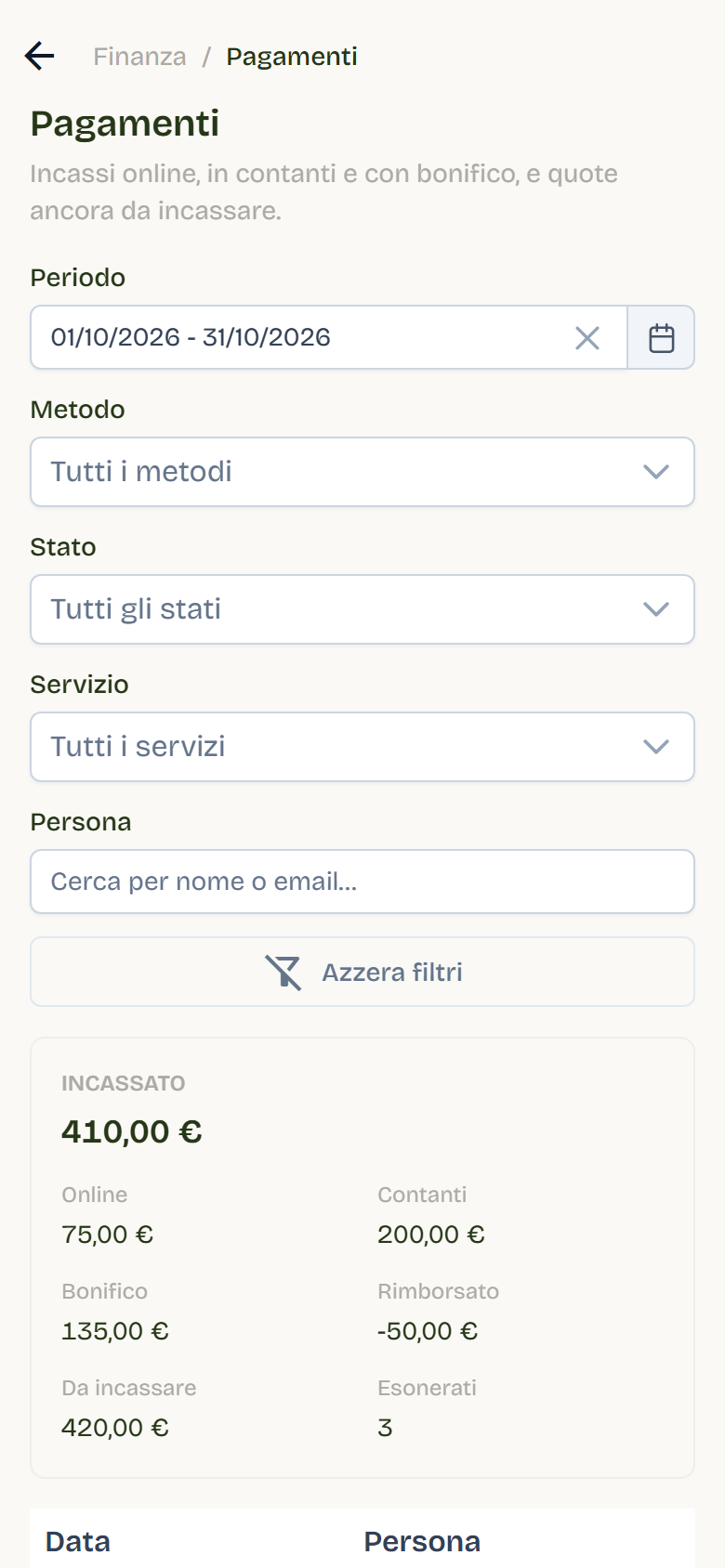
Invoicing → Payments gathers in one list everything the studio has collected or still has to collect: online booking payments, cash and bank transfers recorded in Attendance and payments, amounts still to collect, and waivers. Only administrators see it.
- Period: the current month by default; you can pick one of up to a year.
- Filters: method (online, cash, bank transfer), status, service, and person. Clear filters goes back to the current month with no filters.
- Totals: collected overall and per method, refunded, to collect, and waived. They follow the active filters.
- Rows: an in-person lesson opens that day's attendees; an online payment opens the order detail with the recovery actions.
| Status | Meaning |
|---|---|
| Collected | Payment received online, in cash, or by bank transfer. |
| To collect | A priced lesson, not covered by a subscription and not cancelled, still unpaid. |
| Waived | Lesson waived from payment: zero amount. |
| Refunded | The online payment keeps its date; the refund shows as a separate negative row dated on the refund. |
| Refund pending | Refund started and not yet confirmed by the provider. |
| Needs review | Online order to check; it counts as collected only if the payment was received. |
Each row takes the date and time of the payment; a due amount or a waiver has no time and shows the lesson day only. A cash or bank-transfer payment stays in the list even if the booking is cancelled later. When no row matches the filters, Flo lists the active ones.
Orders on the administration side
You open an order's detail from the Payments view (bookings) or from the Studio plan orders list, which has a status filter and search by client or payment reference. The detail shows client, amount, provider, dates, lines, billing data, and invoice and email status, and lets you run recovery actions:
| Action | When |
|---|---|
| Confirm payment | After verifying payment on the provider, for orders under review. |
| Finalize booking / Activate plan | The order is paid but the booking or subscription was not created. |
| Release | Payment did not arrive: the order becomes expired and creates nothing. |
| Refund payment | The payment must be returned (not available if activation is already completed). |
| Retry invoice | Invoice sending failed deterministically. On uncertain outcome, it asks to confirm that no invoice already exists before retrying. |
Main states
| State | Meaning |
|---|---|
| Pending / Checkout created | Order created, payment not yet started or completed. |
| Paid | Payment confirmed by the provider. |
| Booking confirmed / Completed | Booking created or plan activated. |
| Expired | Time to pay ran out and the slot was released. |
| Payment failed | The provider did not confirm payment. |
| Requires review | Case to verify manually. |
| Refunding / Refunded | Refund started or completed. |
Invoice and email have their own states (queued, processing, sent, failed, not sent) visible in the order detail.
Best practices
- Before enabling online sale, complete the prerequisites and run a test payment in the test environment.
- Keep price, VAT, and VAT nature of activities and plans aligned: without a valid rate, online sale does not start.
- Regularly check Payments filtered by Needs review status: those orders await a decision.
- Always verify on the provider before confirming a payment or retrying an invoice.
- After a refund, open the credit-note draft in Invoicing and send it if due.