Communication
- Use it to write newsletters to your contacts and to see the automatic emails Flo sends to your clients.
- In the menu it is under Comunicazione (Communication): Messaggi, Notifiche operative, and Storico. Contacts are in Persone > Contatti (People > Contacts).
- The most common task: in Messages > Editor write the message, save the draft, press Conferma (Confirm), then Invia (Send).
What it is
Module for sending newsletters, automating communications, and managing contacts in a single place.
It includes: Messages (Editor, Automations, and Library), Operational notifications, and History. The Contacts archive, in People > Contacts, is the shared directory of the people who come into contact with the business.
When it is visible
It is visible when the Communication module is active for your studio and the user has the required permissions (Pro, Admin, or SuperAdmin).
Some areas have specific requirements: the Messages tabs depend on how your studio is set up, while the sending settings (sender, test email, monthly limit) are configured by the Flò team.
Main sectors
- Real Estate
- Fitness
- Enterprise
- Studios with recurring content
Dependencies
Can be linked to:
The areas of the module
From the Communication page you access:
- Messages: compose and send newsletters (Editor), configure automatic sends (Automations), and manage saved messages (Library).
- Operational notifications: the templates of automatic system and transactional communications, in preview only.
- History: the history of sends and notifications, with status and detail.
The sending settings (test email, provider, and monthly limit) are not in your studio’s menu: the Flò team manages them.
Message editor
The editor is used to compose a message and send it to contacts.
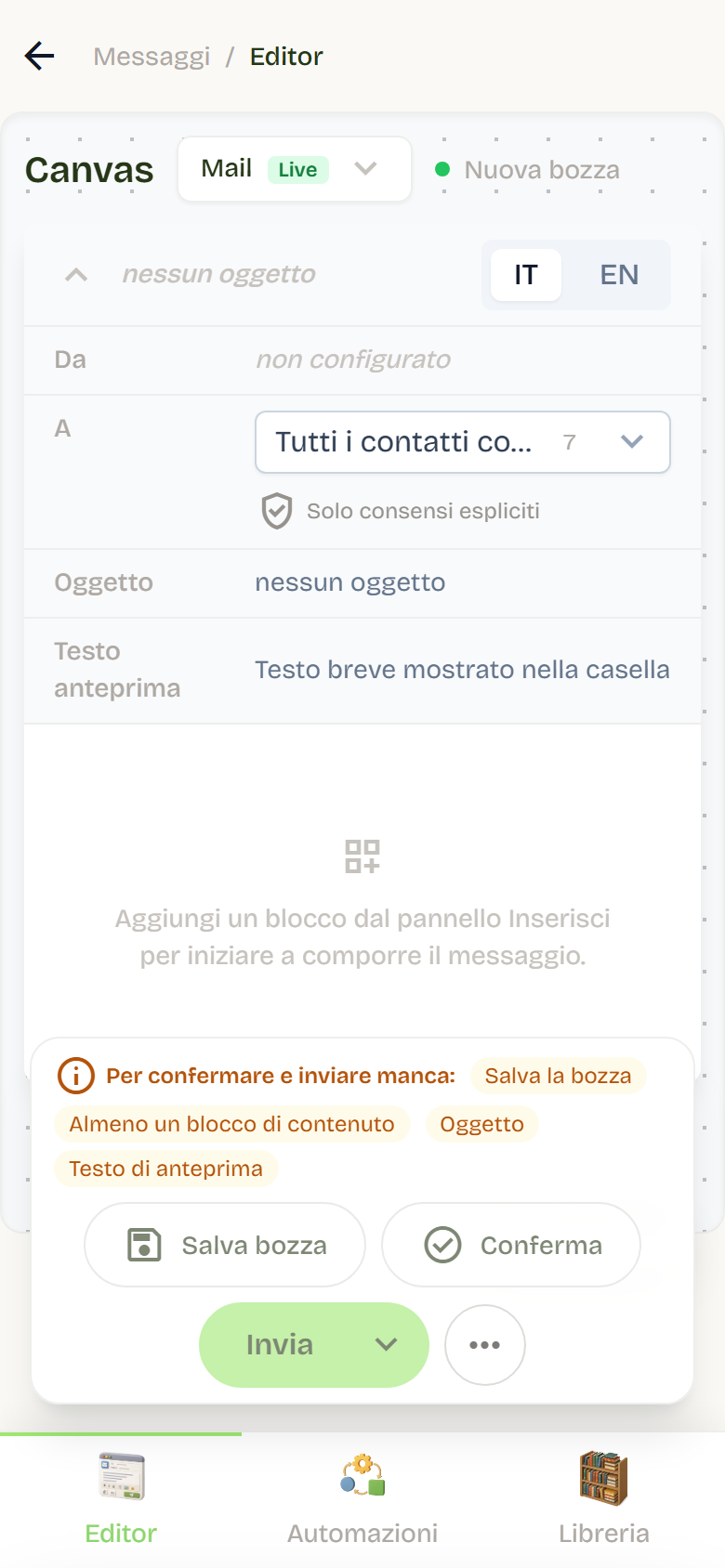
Message details: content language, subject, and preheader (the short text that appears next to the subject in the inbox).
Blocks: add Title, Text, Image, and Button; drag them to reorder and edit the properties of the selected block. Videos do not play in emails: use images only.
App content: import an existing item into the message (for example an article or a product) and choose whether to re-link data, add missing fields, or rebuild from scratch.
Recipients: choose the group of contacts by category; only contacts with explicit consent are included.
Before sending you need: saved draft, at least one block, subject, and preview text. Message states are New draft, Unsaved changes, Saved draft, and Ready.
After confirmation you can:
- Send now: starts immediately, with confirmation and recipient count;
- Schedule send: choose date and time (including a future day); Flo warns you if a send already exists on the same day and time;
- Send test newsletter: reaches only the configured test addresses and ignores audience, category, cadence, and recipient limit.
In the send dialog you also choose the cadence (Immediate ~5 min, Fast ~30 min, Standard ~1 hour, Gentle ~2 hours, with estimated delivery) and, in the advanced options, the maximum number of emails and the per-second frequency. If the monthly cap is exhausted or the provider has run out of quota, sending is blocked and Flo indicates when it will resume.
Automations
The Automations tab configures automatic newsletters for published content.
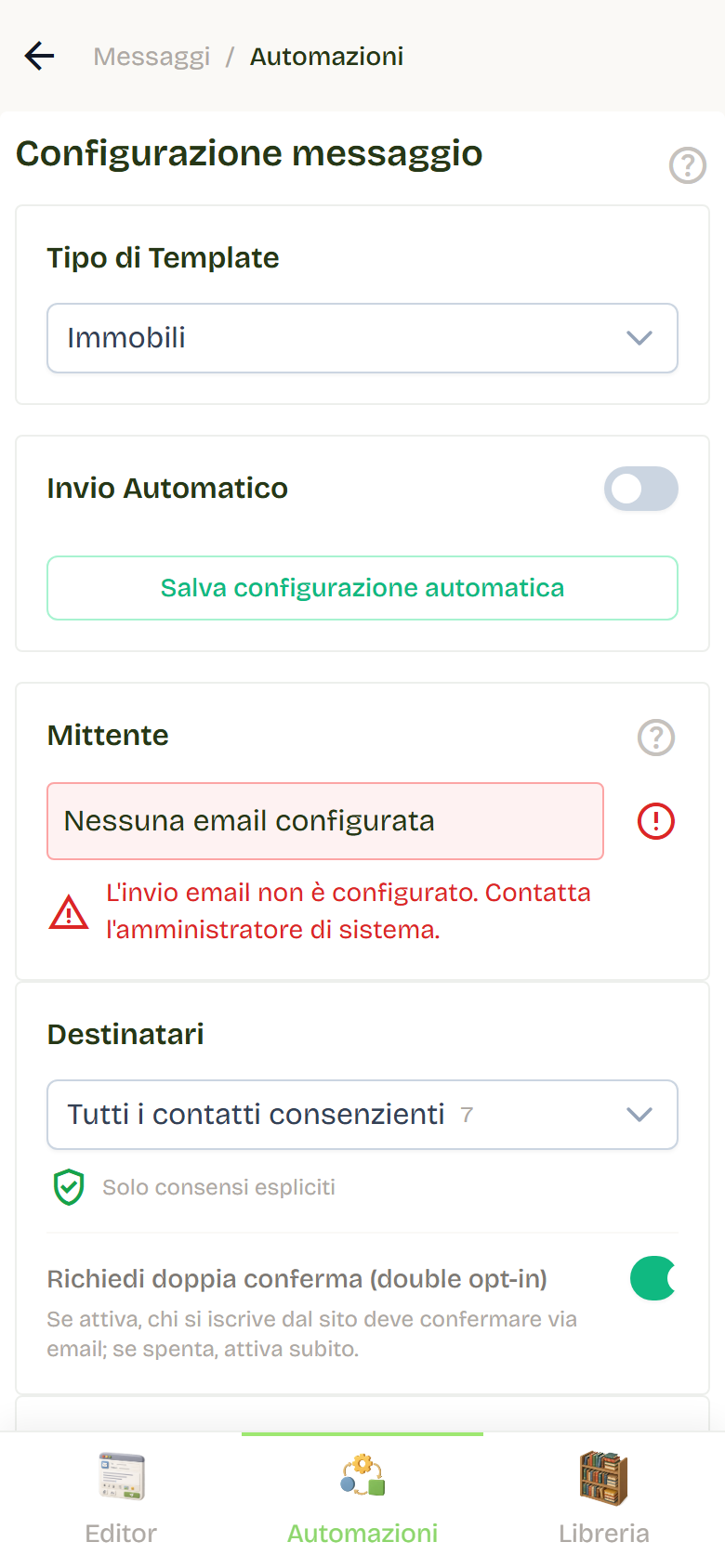
- Template type: Blog and Properties, depending on the modules active for your studio.
- Sender: the sending address, configured by the Flò team, with the connection status. If it shows Nessuna email configurata (no email configured), ask support.
- Recipients: the group of contacts with consent, with the count.
- Channels: email; WhatsApp is indicated as coming soon.
- Preview: the template with language selector.
For the Blog you can send (or test-send) the newsletter of the latest published article.
For Properties you can enable automatic sending with daily, weekly, or monthly frequency and sending time in Italian time (it stays the same across daylight saving changes), and see the date and time of the last and next send. Each automatic send covers the properties published since the previous send started, with no gap between cycles. Manual sending uses the chosen time window (last 24 hours, last week, last month) with the number of properties found; if there are none, the newsletter does not go out.
On the same page you find the Require double confirmation (double opt-in) toggle for website sign-ups: if enabled, subscribers must confirm via email; if disabled, the subscription activates immediately.
Library
The Library collects saved messages:
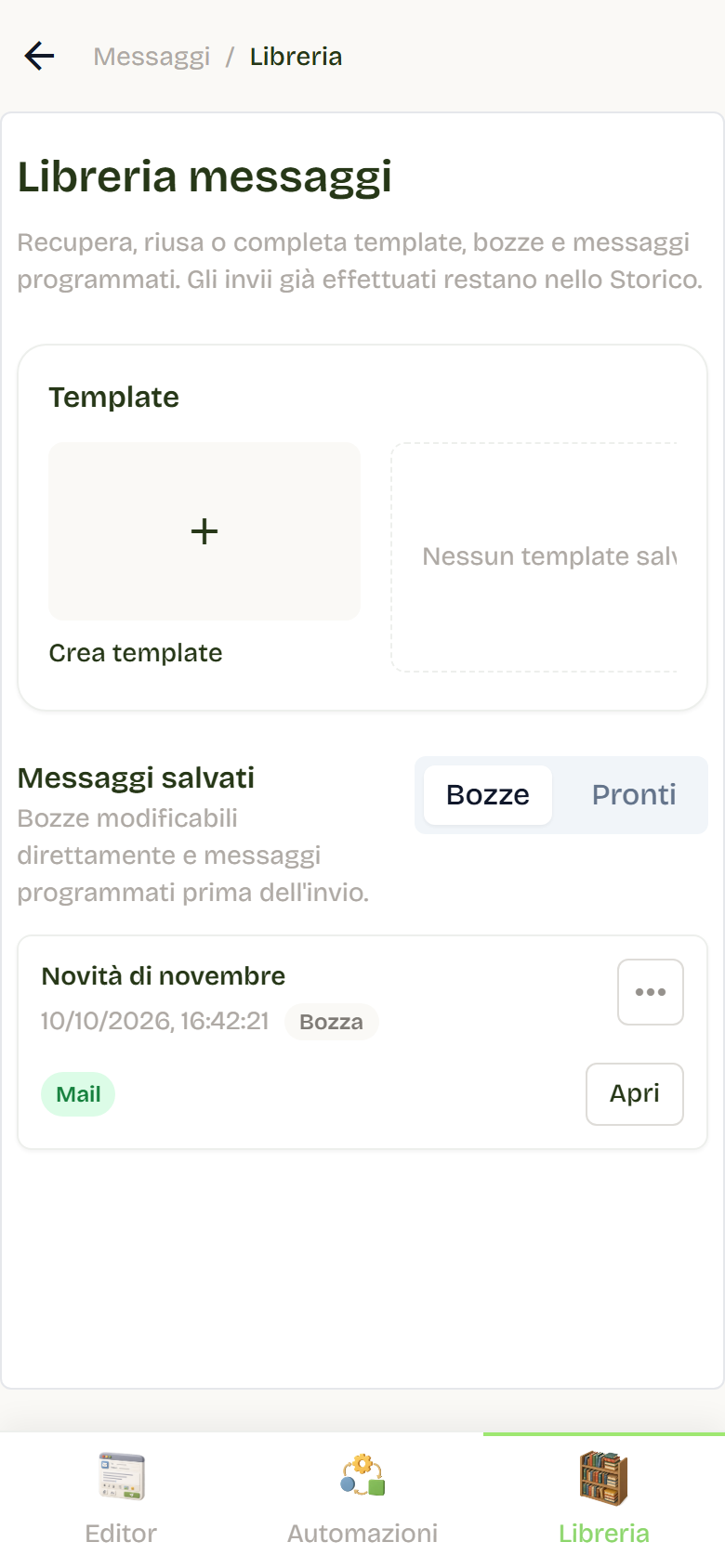
- Templates: reusable models; using them creates a new draft without changing the original.
- Drafts: messages still being worked on.
- Ready: confirmed messages, ready to send or already scheduled.
From here you can open, duplicate, delete an item, or save it as a template. Sends already carried out remain in the History.
Send history
History shows messages and operational notifications in a single timeline, with date, subject, status, and progress. Possible states are: Queued, Scheduled, Sending, Paused, Completed, Completed with errors, Failed, Cancelled.
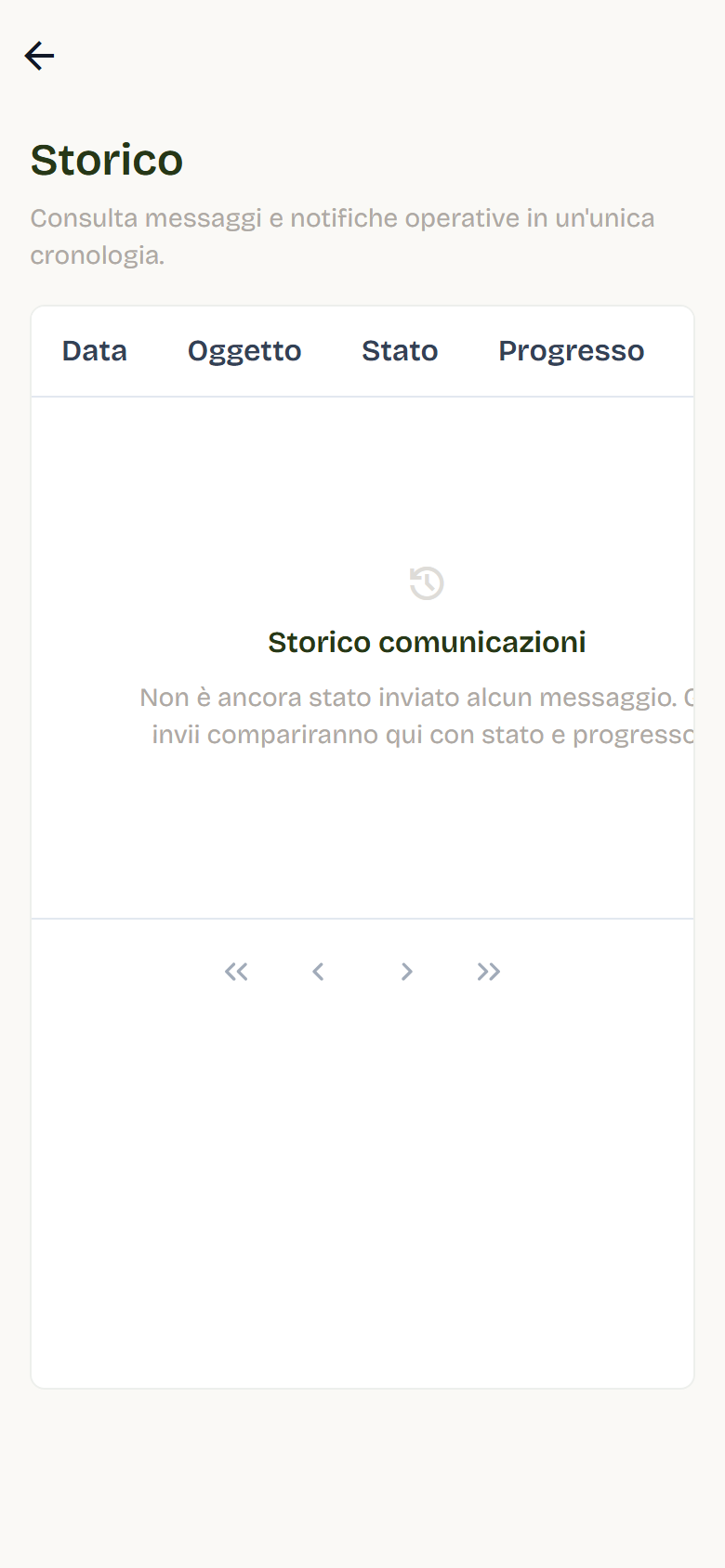
In the detail you find recipients, sent, remaining, failed, and suppressed, the last error, the provider, and the language. From here you can cancel an ongoing send (emails already sent cannot be recalled) and view the sent email.
Operational notifications
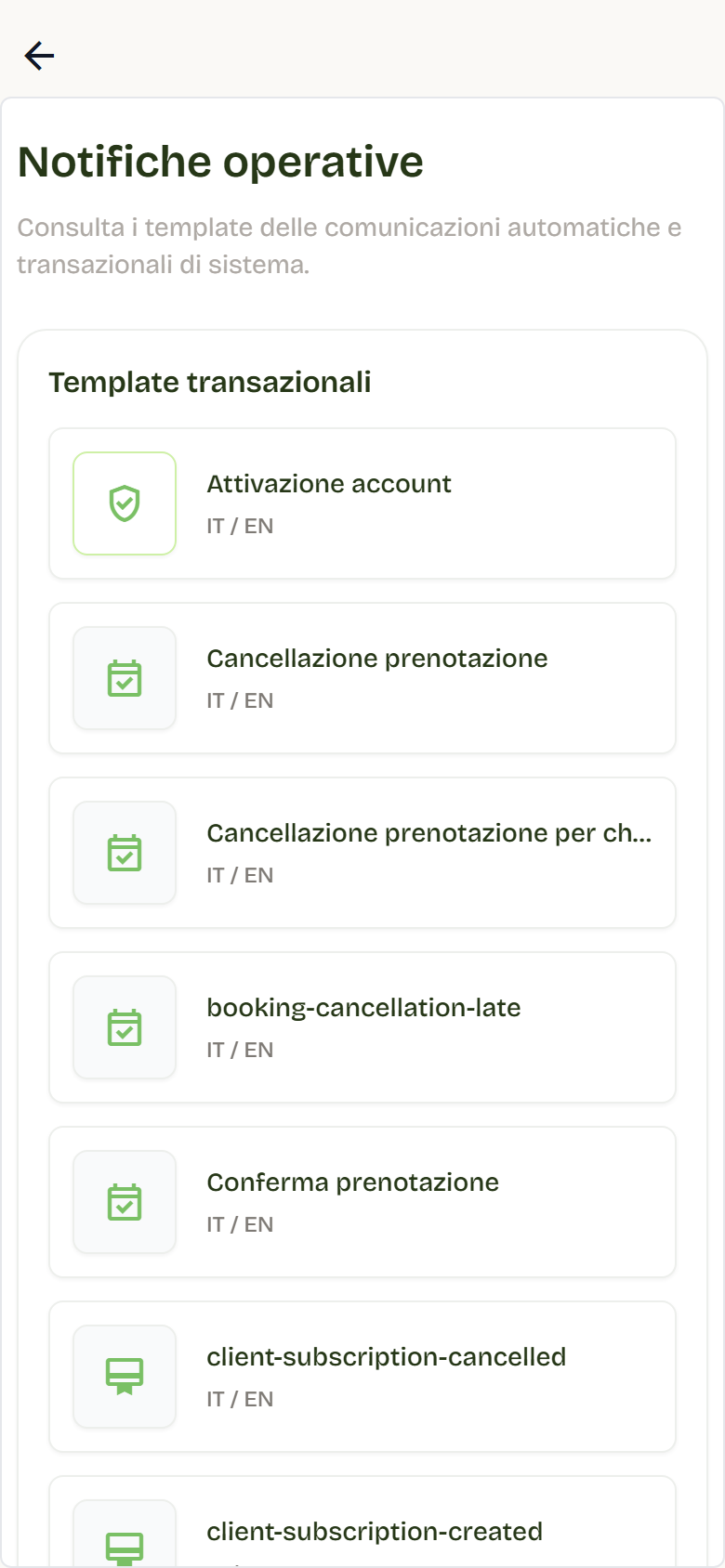
Operational notifications lists the system transactional templates (confirmations, reminders, password recoveries, and the like). They are sent automatically by platform functions and in Flo are available in preview only, with the language selector. If a template does not exist in a language, Flo reports it.
Settings
The sending settings are configured by the Flò team: to change them, ask support. Here is what they include:
- Test email: if the list has values, every send is diverted only to these addresses; real subscribers are not reached. To return to normal sends, the list must be emptied.
- Sending provider: the service used for newsletters.
- Subscription confirmation email: the confirmation sent to subscribers, with the unsubscribe link.
- Monthly email limit: the cap on newsletter emails; transactional emails are never blocked. See the month's usage, remaining quota, and reset date.
- Reset counter: makes the emails already counted in the month available again; the operation cannot be undone and does not increase the provider quota.
Contacts
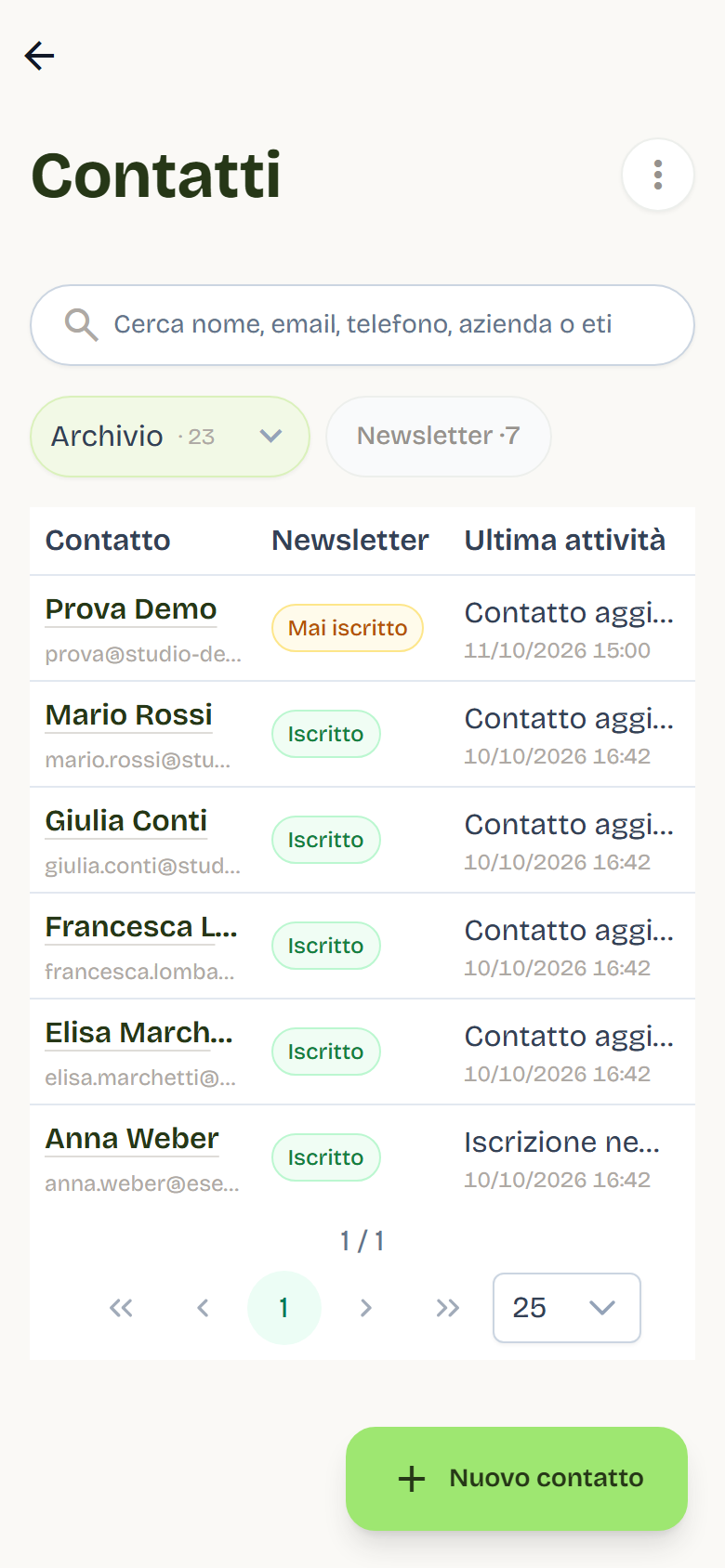
Contacts is the central archive and opens from the People > Contacts menu. For each contact you find: personal and contact data, category, labels, internal notes, source and origin, newsletter status, and last activity.
- Labels: free-form and multiple, to group contacts by interests or characteristics.
- Category: one per contact, for the main type (for example Client or Supplier).
- Internal notes: visible only to the team, not used in communications.
Main operations:
- Import (CSV or XLSX): Flo shows the preview with the number of contacts found and proposes the modes Upload new dataset, Merge into archive (adds and enriches), or Replace archive. You can upload multiple files and also include not-yet-linked users.
- Undo import: restores the archive to the state before the last import; security exclusions for bounces, complaints, and manual blocks always stay active.
- Export: downloads the contacts of the current view as CSV.
- Empty archive (reserved to higher profiles) and Delete contact: remove data permanently.
The contacts archive and newsletter subscribers are linked: each contact's newsletter status indicates whether they have consented to promotional communications.
Contact card
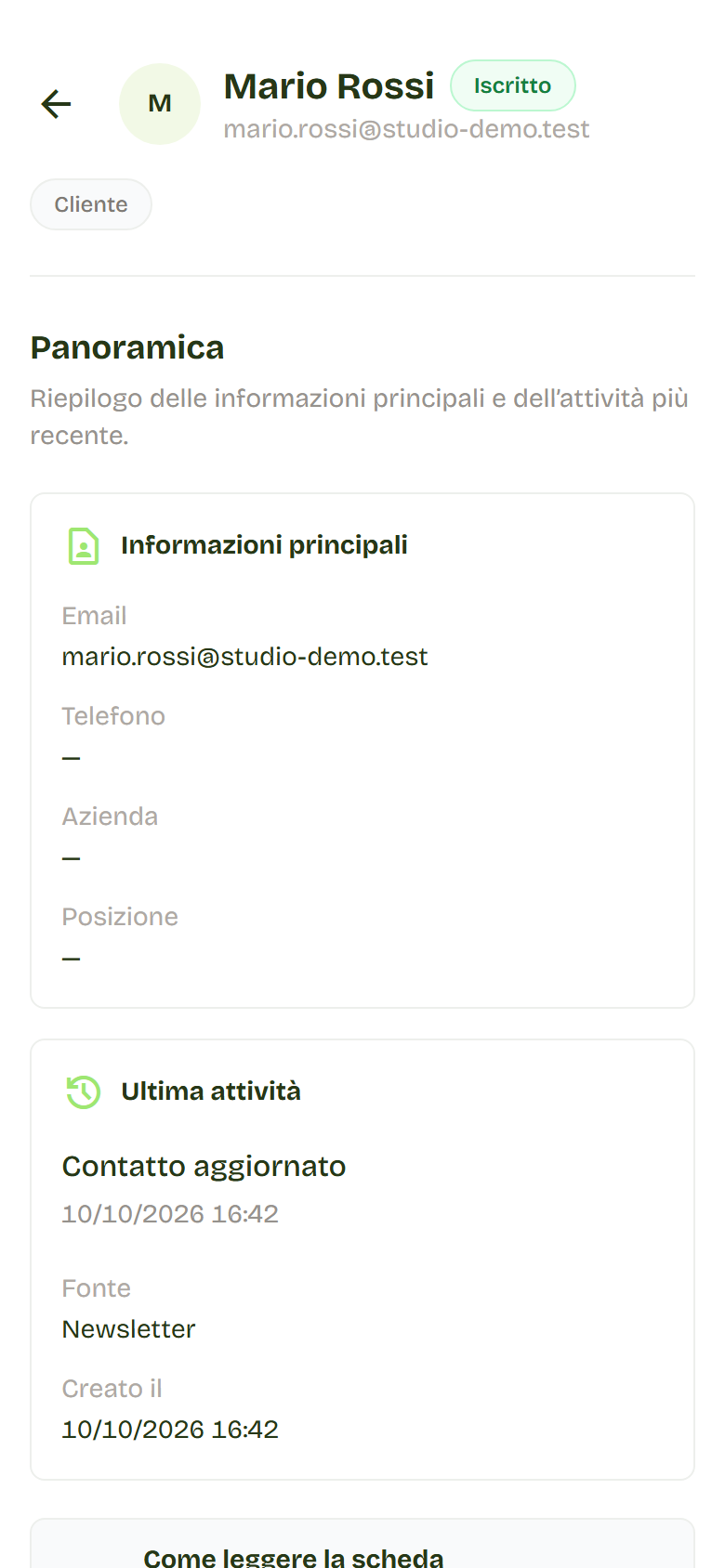
Tap a contact’s name to open their card. The Overview sums up the main information, the latest activity, and internal notes; the other sections are Contact details, Activity, Newsletter and marketing, Property preferences, Origin, and Administrative actions.
Consent and unsubscription
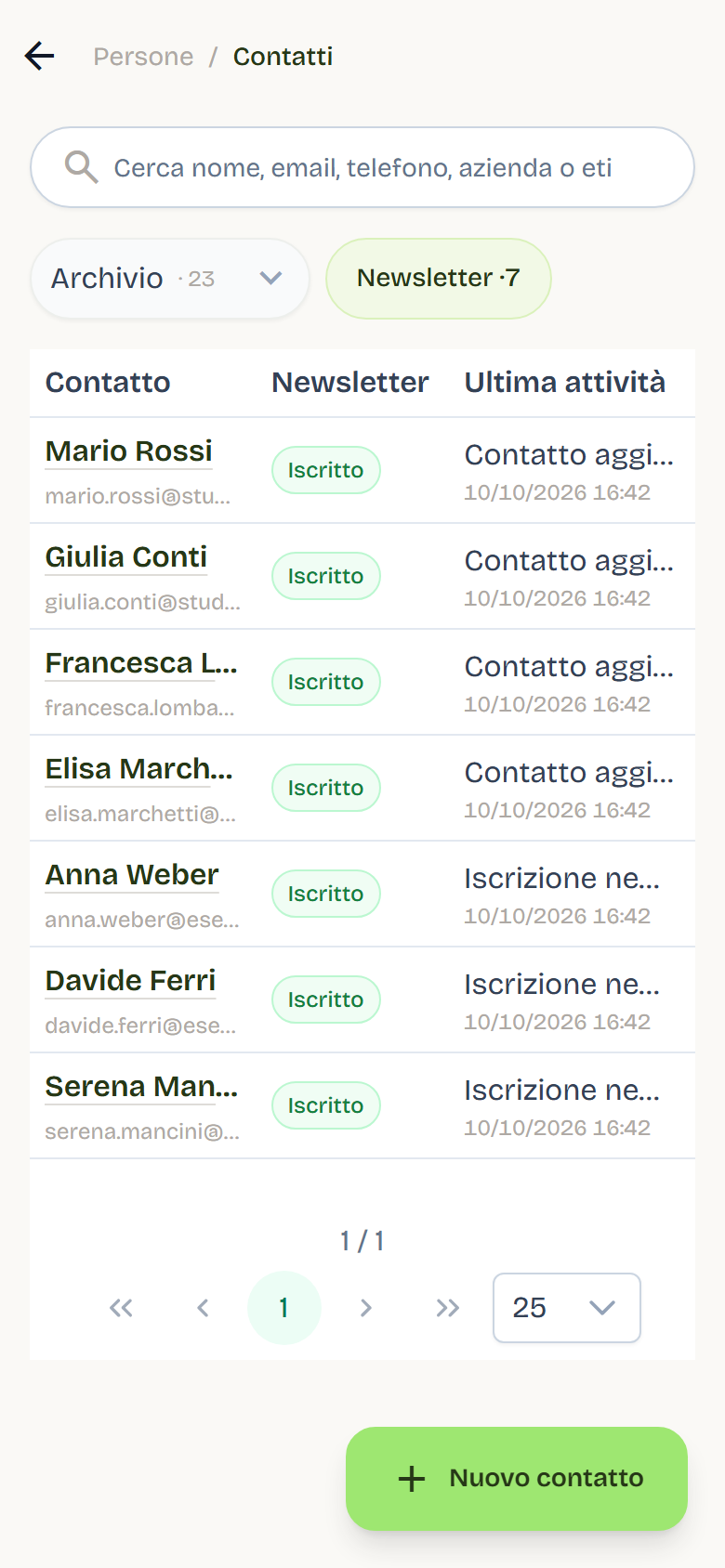
In the Contacts archive, the Newsletter filter shows only subscribed people, that is, those who gave their consent.
- Double opt-in: decide whether website sign-ups must go through email confirmation.
- One-click unsubscription: every email contains the signed link to unsubscribe; from the same page it is possible to subscribe again.
- Suppression list: addresses with bounces, complaints, or manual blocks are no longer contacted; a new sign-up only removes the unsubscription, never the security exclusions.
Email log
The sent-email log (delivery status, filters and the detail of each send) is reserved for Flo support. If a client says an email never arrived, contact support with the address, date and email type, and we will check the delivery.
Best practices
- Always try the preview and the test send before a real send.
- Check the recipient count and the chosen group before confirming.
- Keep the contacts archive clean: merge duplicates and update labels.
- Respect consent: only use groups with explicit consent.
- Use the standard cadence for large sends, so the sender reputation stays stable.
- Check the History after each send: failed and suppressed tell the quality of the list.