Gallery
- Use it to upload and order the photos and videos that appear on your site.
- It has no menu entry of its own: open Website > Contenuti dinamici (Dynamic content), press Gestisci (Manage) on a content item, and go to the Media section.
- The most common task: drag the new photos into the upload area and press Salva (Save).
What it is
A module for uploading and updating the images, videos and GIFs that make up the site's content.
In Flo, the gallery is the Media section of each dynamic content item: the media you upload here is served to the public site through the content item it belongs to.
It is part of the Dynamic content category.
When it is visible
It is visible when the studio wants to manage media content independently.
Main sectors
- Fitness
- Real Estate
- Enterprise
- Studios with an updatable site or visual sections
Dependencies
Part of:
Can be linked to:
What can be uploaded
| Type | Formats | Limits |
|---|---|---|
| Images | JPG, PNG, GIF, WebP | maximum 100 MP |
| Video | MP4 (H.264, AAC or MP3 audio) | maximum 10 minutes |
- Maximum 20 MB per file.
- Maximum 50 media per content item.
- Files are verified before upload: if a file does not meet the limits, Flo shows the reason and does not upload it.
Uploading media
Media is managed from the edit page of a dynamic content item, which has two sections: Dettagli (Details) and Media.
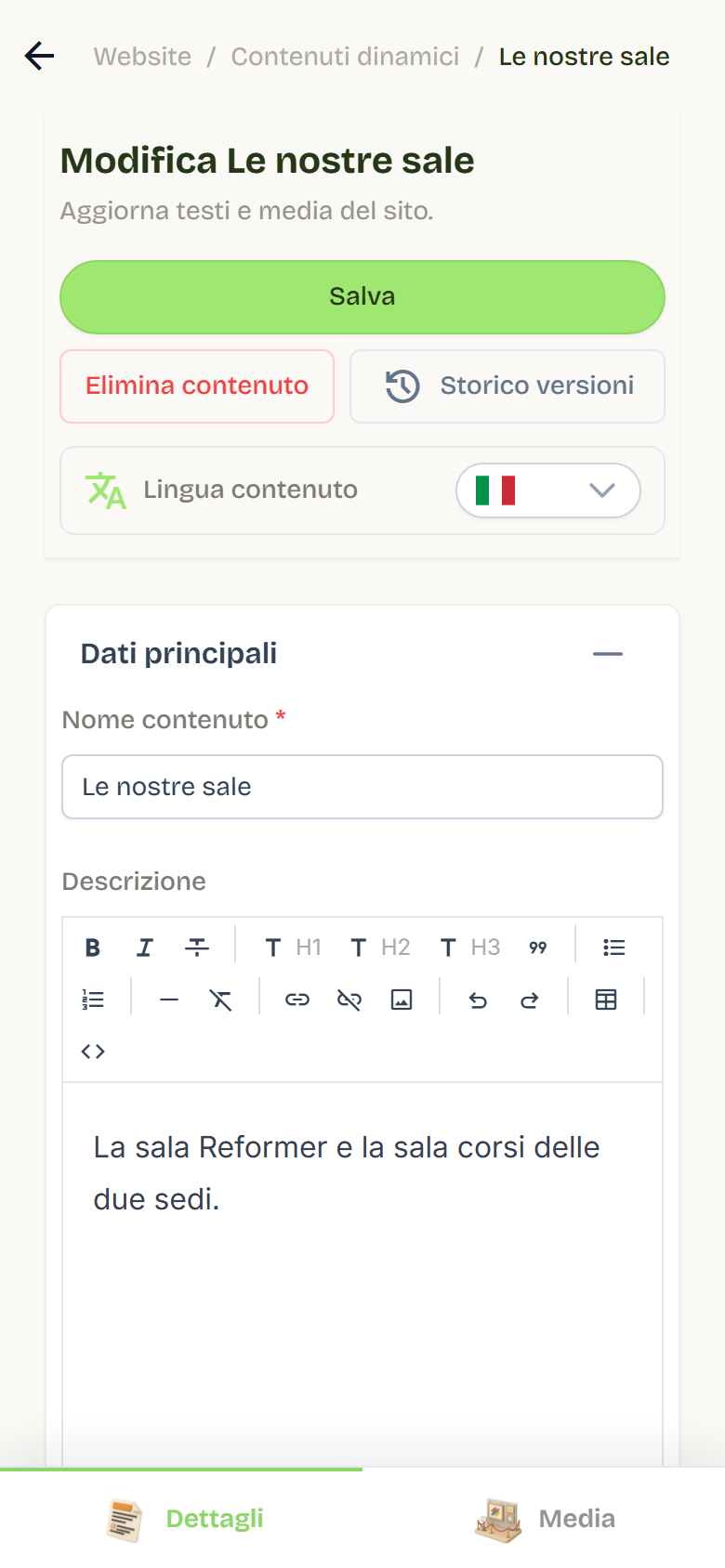
- Open the content item and go to the Media section.
- Drag files into the upload area or click Select media and choose the files.
- Wait for verification and upload: new media appears at the bottom of the list.
- Click Save to apply the changes.
Notes:
- For new content, media is uploaded after the first save ("Save the item before uploading media").
- You can select multiple files together; the upload stops when you reach the maximum number of media.
Ordering media
- On desktop, drag rows to reorder them.
- On mobile, expand the media row and use the up and down arrows.
- The first media item is the main one.
- The order is saved with Save.
Captions and visibility
- Each media item can have a caption for every active language: open it from the dedicated icon in the media row.
- In the Flo list, if the caption is empty the file name is shown.
- Hide media from site and Show media on site: hidden media stays in Flo and is excluded from the site.
- Use on mobile only and Use on desktop: tells the site to use that media only in mobile views.
In this module, the media text is the caption: there are no separate title and description.
Visibility and publishing
- Dynamic content has no draft state: after Save, the site immediately receives the updated media.
- Hidden media is not served to the site; deleting it removes it from Flo and from storage.
- Maximum media visible on the website, set in the Media section, limits how many media the site shows.
Configuration lock
With the configuration locked, the content name cannot be changed, while media remains editable. See Dynamic content.
Version history
When history is enabled, each save of the content item creates a version that includes media, order and captions. See Content history.
Best practices
- Upload already-optimized images and short videos: the site stays faster.
- Use short, descriptive captions.
- Hide a media item instead of deleting it when the change is temporary.
- Check the order after each addition: the first media item is the main one.