- What it is
- When it is visible
- Main industries
- Dependencies
- Where bookings are managed
- Booking (client-side)
- Booking on behalf of a client
- Cancelling a booking
- Operator-side: calendar and enrolled users
- Capacity and overbooking
- Notice periods and daily limits
- Attendance and payments
- Check-in and attendance
- Good practices
Bookings
- Use it to manage lessons, appointments and the places clients book.
- In the side menu it is under Booking > Bookings; clients book from Book.
- The most common task: open a service, pick a day and time and see who signed up.
What it is
Module for managing bookings, availability, lessons, appointments and calendars, both client-side and operator-side.
When it is visible
It is visible when the studio offers bookable activities, time slots, lessons or appointments.
- Client-side, the Book entry appears and, under Account, the My bookings section.
- Operator-side, Booking > Bookings appears in the side menu.
- If you don't see the section, the module is not active or you don't have permission.
Main industries
- Fitness
- Wellness
- Appointment-based services
- Enterprise configurations with slots or availability
Dependencies
Can activate or require:
Where bookings are managed
| Surface | Path | What it is for |
|---|---|---|
| Client | Book | Service, date and time choice, cart and online payment |
| Client | Account > My bookings | Future and past bookings, cancellation |
| Operator | Booking > Bookings | Service list, calendar, schedules and enrolled users |
| Operator | Booking > Calendar | Lessons by day, week or month with seats, closures and enrolled users (Calendar) |
| Operator | Administration > Closures | Scheduled blocks and cancellations (Closures) |
| Operator | Administration > Users > user record > Bookings | Client history and Assign booking |
| Flò team | Booking settings | Overbooking for administrators: ask support |
| Operator | Administration > Services > Schedules | Weekly service scheduling (Services) |
Booking (client-side)
- Open Book.
- Choose the service among the cards. View schedule opens the weekly schedule.
- Choose the date from the calendar: days with availability are highlighted; dates not covered by the subscription are disabled.
- Choose the time in the Available times list.
- Repeat for multiple lessons: the summary appears in the cart.
- Press Book now and confirm.
- Flo sends the booking confirmation email, if the configuration provides for it.
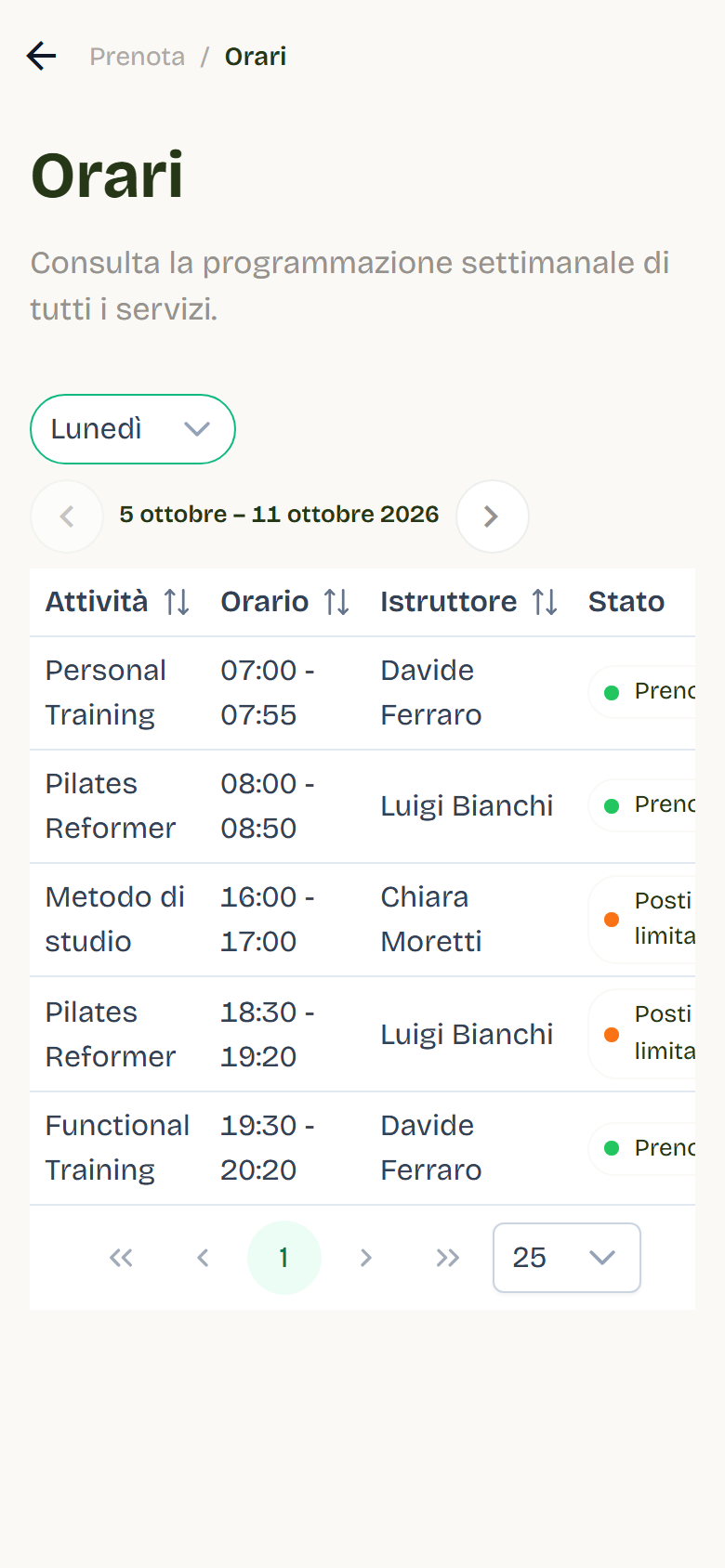
Each time row shows its state with a colour: white when it's bookable, green when it already belongs to the client, grey when it can't be booked right now. The Why? button explains the reason. The user guide shows every state with its image: it's the page to send a client who asks why they can't book.
Notes:
- Online payment is available only for your own booking and handles one booking at a time; the price appears at the top of the service page.
- The cart cannot exceed the available entries: remove a booking to choose another one.
- A service with a video call link (set in Services) shows the client the Online badge and the Join the video call button in My bookings; the confirmation and the reminder carry the link.
Booking on behalf of a client
The On behalf of function is available to Admin and SuperAdmin.
- Open Book.
- Choose the service.
- Under On behalf of (optional) search the user by name, email or phone and select them.
- Choose date and time: the header shows the user's entries and validity.
- Confirm.
Possible warnings during confirmation:
- Booking within the notice period: the booking is allowed because you have administration permissions.
- Daily limit reached: you can still proceed.
- Missing subscription or entries: you can book without deducting entries.
The booking can exceed capacity only if overbooking for administrators is active (see below).
When you book on behalf of a client, the rows describe that client and Why? names them. Two rows appear only in this case:
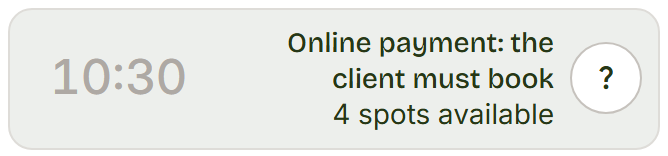
What it means: the service is paid online, and the participant pays. Staff can't book it for them.
What you can do: ask the client to book from their own account.
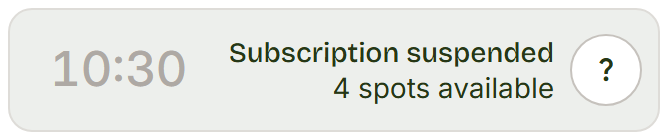
What it means: the client's subscription is suspended. The same goes for no entries left or dates outside the validity: the row is the client's, but Why? speaks to you.
What you can do: reactivate or renew the subscription from Administration > Client subscriptions, then book.
From the user record you can press Assign booking: Flo opens the same flow with the user already selected.
Cancelling a booking
Client-side, from My bookings:
- Find the future booking.
- Press Cancel and confirm.
- Beyond the refund notice period the entry becomes available again; within the notice period cancellation is possible, but the entry is not returned and Flo warns about it in the confirmation.
- Bookings with online payment don't show cancellation: management goes through staff.
Operator-side, from the user record > Bookings, the cancellation confirmation lets you choose Credit entry or Cancel without credit.
Automatic cancellations managed by the studio (with entry credit and email):
| Reason | How it appears in history |
|---|---|
| Closure | Cancelled |
| Schedule removed | Schedule removed |
| Subscription suspension | Suspension |
Operator-side: calendar and enrolled users
- Open Booking > Bookings.
- Choose the service from the cards or the top selector.
- Choose the date in the calendar: days with available times are highlighted.
- In the times list choose the slot: rows are in chronological order and show time, status and spots.
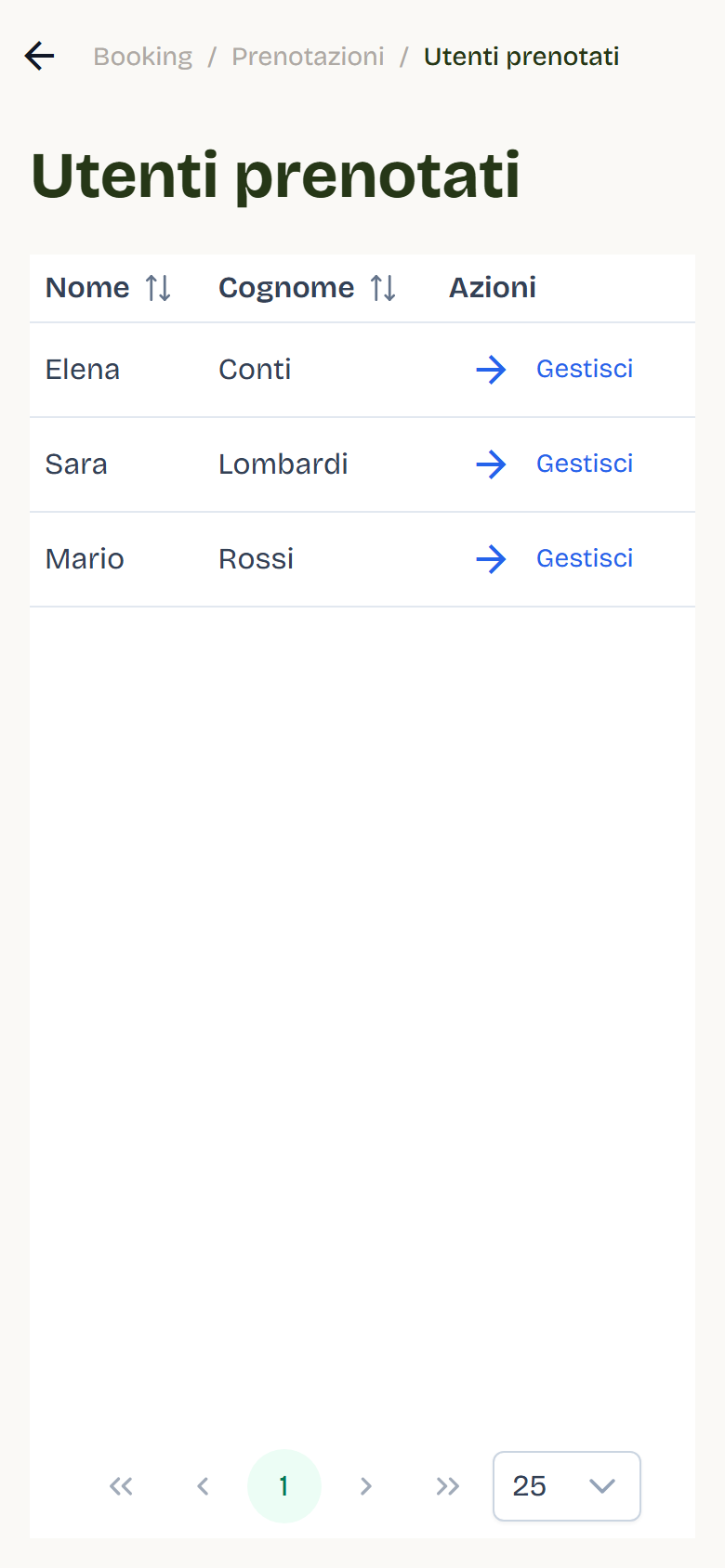
- In the Booked Users panel you see enrolled users, sortable by last and first name and paginated; the row action opens the user record.
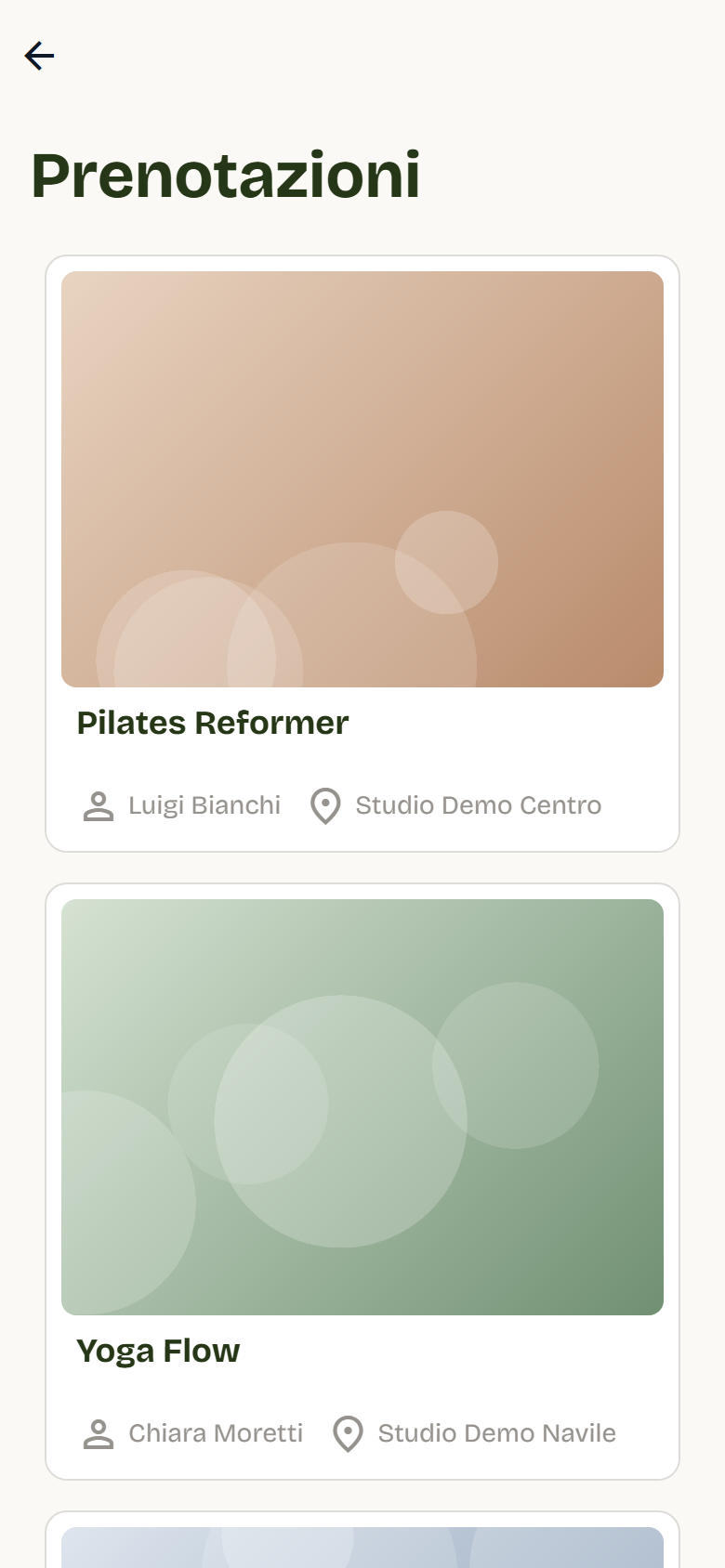
On a phone, tapping a time opens the Utenti prenotati (Booked users) page instead of the side panel.
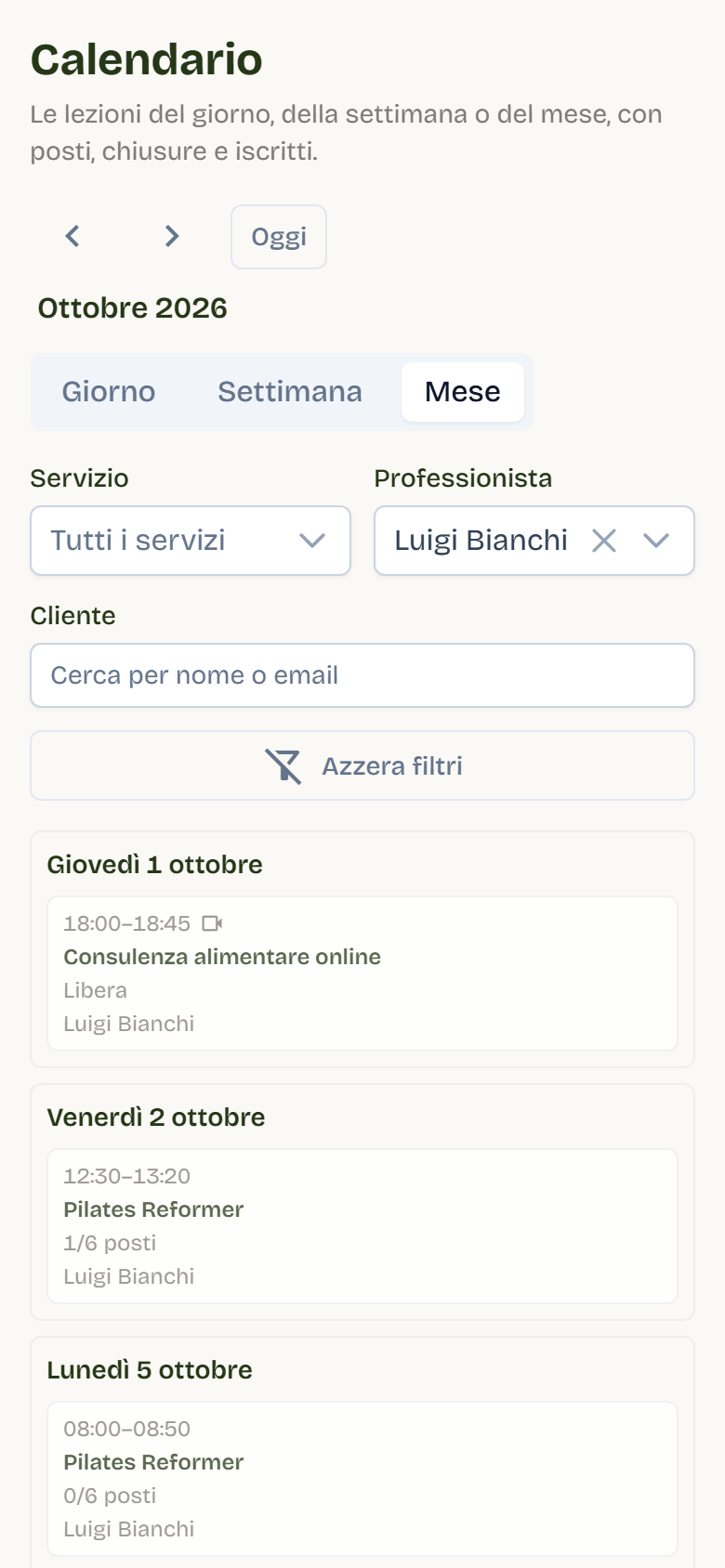
Studio calendar
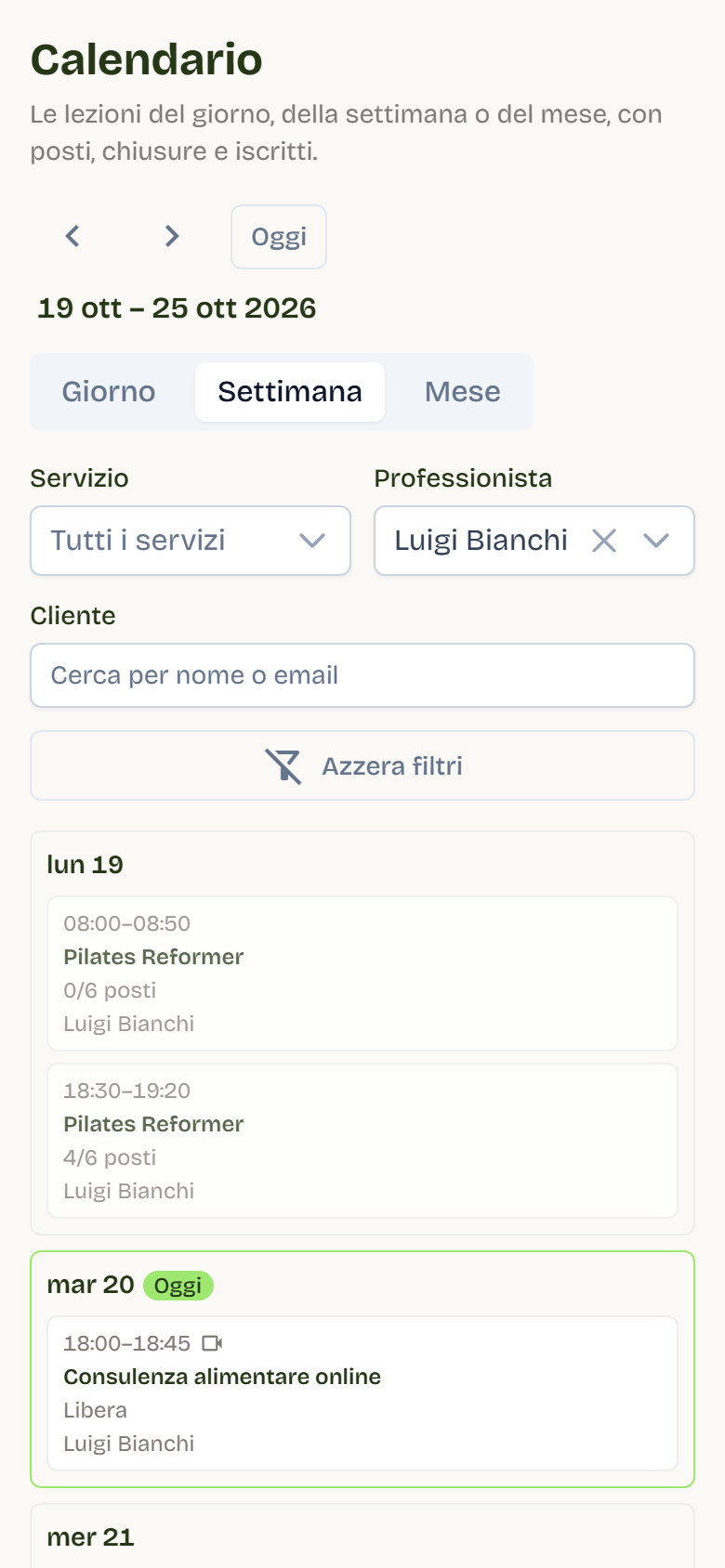
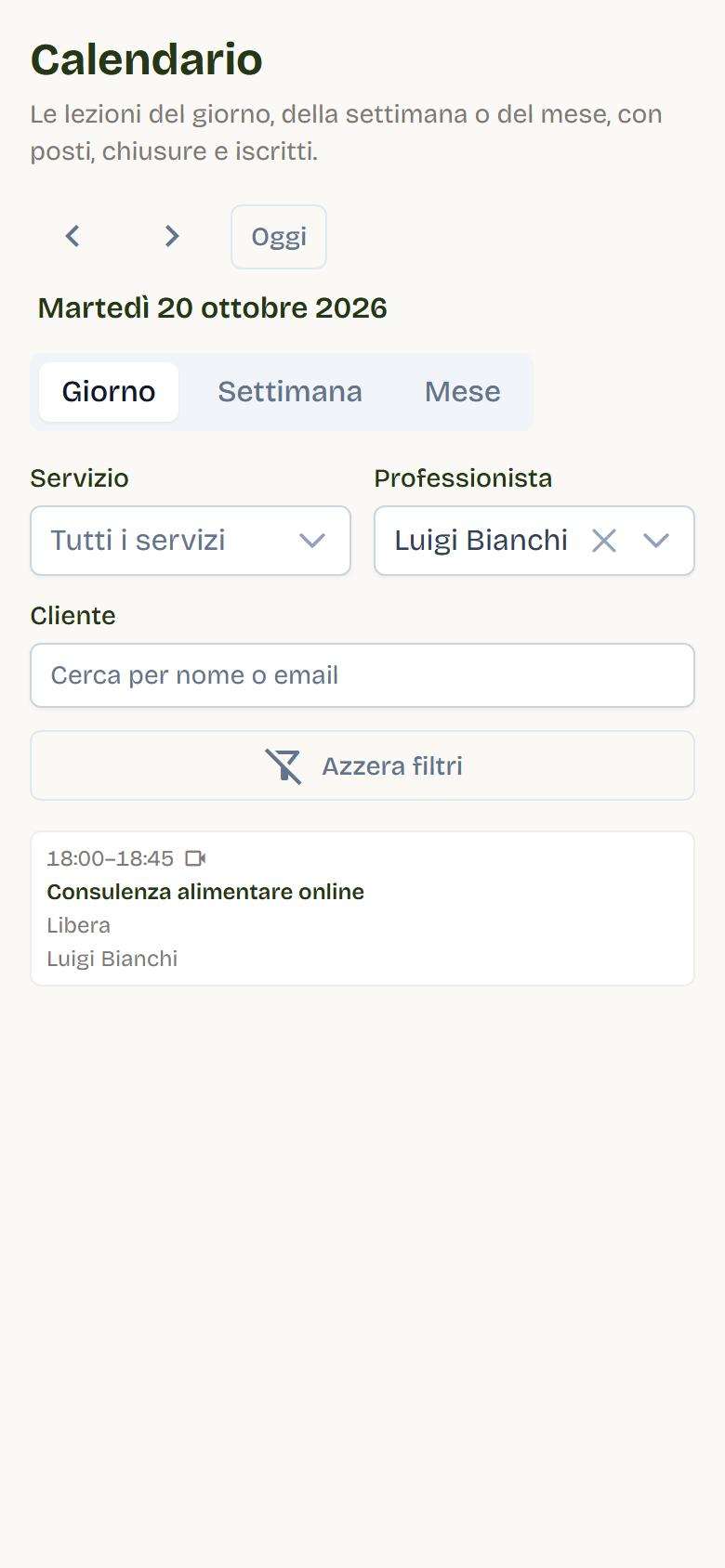
Booking > Calendar shows the lessons of every service in one view by day, week or month. A professional sees only their own services.
- Each lesson shows time, service and booked seats; a one-to-one appointment shows Free, Booked or the client's name.
- Full lessons are marked Full; lessons on a closure day are marked Closed and struck through.
- Filter by service, professional or client; Clear filters goes back to the full view.
- View, date and filters stay in the page address, so you can bookmark it or share it with a colleague.
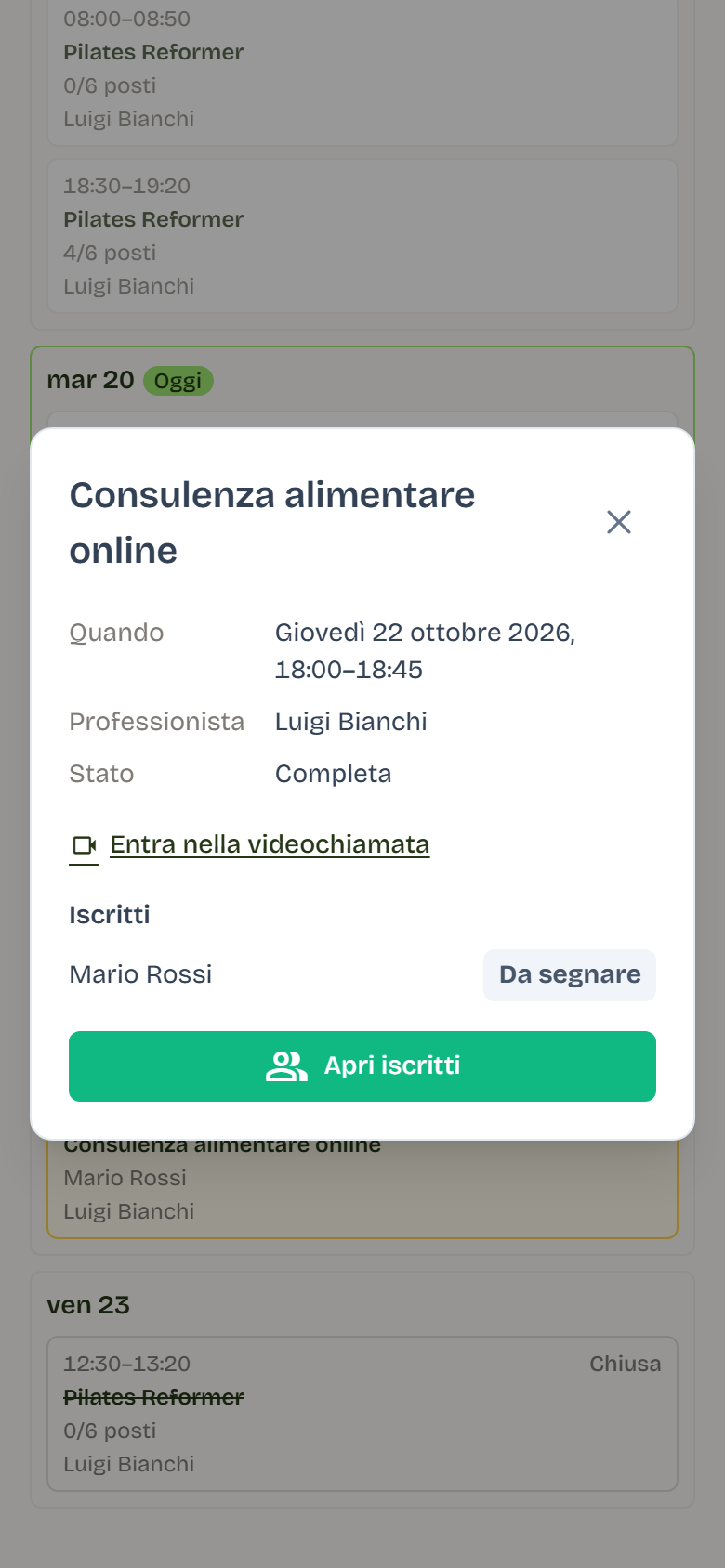
- Tap a lesson to see its details, the enrolled users with their attendance and, for an online service, the video call link.
- Open attendees goes to the Utenti prenotati (Booked users) page of that time slot.
- The month view does not load names: open the day to see them. On a phone the month becomes a list of days.
Time rows on the operator side
On the operator side each row shows how many clients are enrolled against the capacity, and the arrow on the right opens the enrolled users.
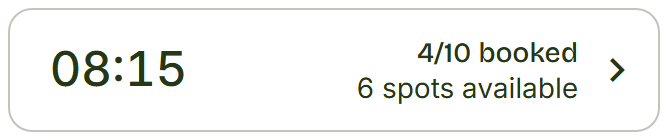
What it means: 4 clients out of 10 spots are enrolled, 6 are left.
What you can do: tap the row to see who is enrolled.
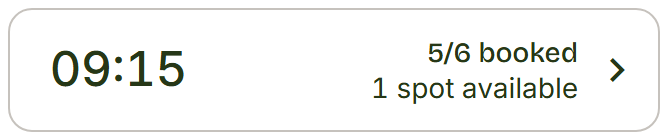
What it means: only one spot is left.
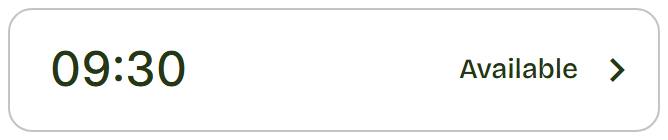
What it means: the time has no set capacity, so there is no spot count.
What you can do: to set a limit, set the capacity on the service's time (Services).
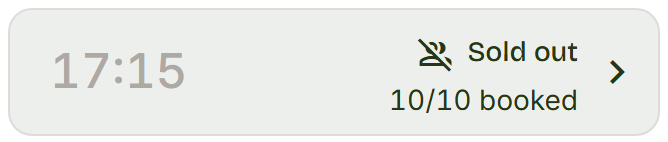
What it means: the lesson is full, clients can no longer book it.
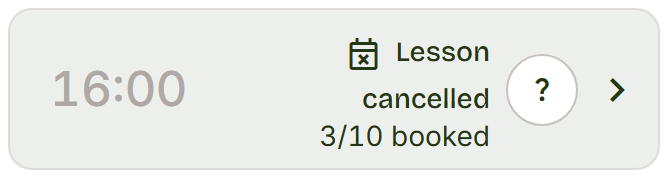
What it means: a closure cancelled the lesson. The count says how many bookings there were; Why? shows the closure's reason.
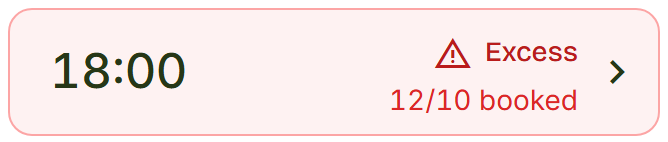
What it means: the enrolled clients exceed the capacity, usually because you lowered it after clients had booked.
What you can do: open the enrolled users and contact the extra ones, or set the capacity back. See Capacity and overbooking.
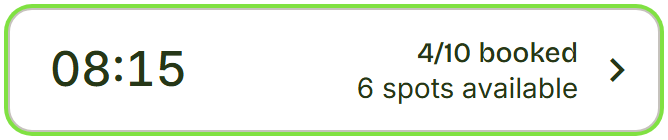
What it means: the green border marks the time currently open in the enrolled-users panel.
One-to-one appointments
When a time has a single spot, Flo treats it as a one-to-one appointment. The row says whether it's free or booked, without counts like 0/1 or 1/1. The capacity of the day counts: if you scheduled the move to 1 spot, the time becomes one-to-one from the date of the change.
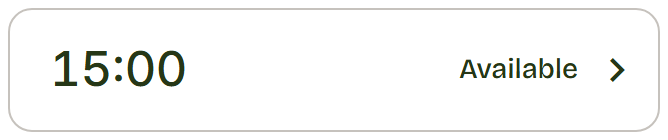
What it means: nobody has booked the appointment yet.
What you can do: tap the row to open the enrolled-users panel.
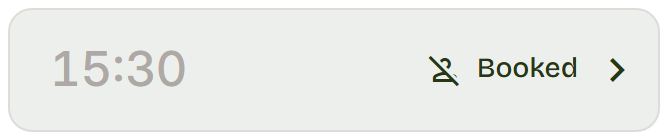
What it means: a client has booked the appointment.
What you can do: tap the row to see who it is.
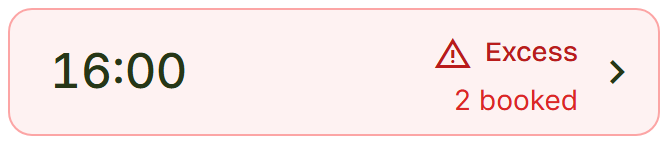
What it means: two clients hold the same appointment. It usually happens when the capacity drops to 1 after the bookings.
What you can do: open the enrolled users and contact the extra one, or set the capacity back. See Capacity and overbooking.
In the schedules view of Services the status reads Bookable or Booked. On the professional's Home the next lesson reads Available or Booked.
Capacity and overbooking
- Capacity is set on service times in Services.
- With capacity 1 a time becomes a one-to-one appointment and shows no counts. See One-to-one appointments.
- If you reduce the capacity of an already-booked time, Flo opens Capacity conflicts detected: dates and times with Bookings and Excess, the Users to contact (the last to book first) and the Apply new limit starting from date. You can Cancel or Proceed anyway.
- The Allow admins to book beyond capacity option is configured by the Flò team: ask support to turn it on or off. When active, administrators can book even when sold out; when inactive, they respect the limit.
Notice periods and daily limits
- Booking notice period, refund notice period and daily limit are configured in Activity > Bookings.
- Studio plans add their own limits: maximum per day and maximum per service. A plan with an explicit limit replaces the studio limit and counts only that plan's bookings; a plan without a custom limit inherits the studio rule (Subscriptions).
- When the limit is reached, times are blocked and confirmation is unavailable.
- The plan quota ("N bookings per day · M per service") is visible in the subscription detail.
Lesson reminders
In Business > Bookings you can have Flo send an email before every booked lesson. The client gets the date, time and the deadline to cancel without charge.
If the service has a video call link, the confirmation email and the reminder include it with the online label.
Attendance and payments
The day's register: who came, who still has to pay and what to invoice. Open it from Attendance and payments in the side menu or from its card in Administration.
- Pick the day in the calendar or with the Previous day / Next day arrows; Today goes back to the current date.
- Bookings are grouped by lesson. Each lesson header shows three counts: Booked, Attended and To collect.
- On each row mark Present or Absent. Before the lesson starts the button stays locked with the notice "The lesson has not started yet".
- Record the payment with Cash, Transfer or Waive: a window opens with Amount (€) and an optional Note, then press Confirm.
- Press Invoice to create the draft invoice for that lesson: Flo opens it right away in Invoicing, ready to check and send.
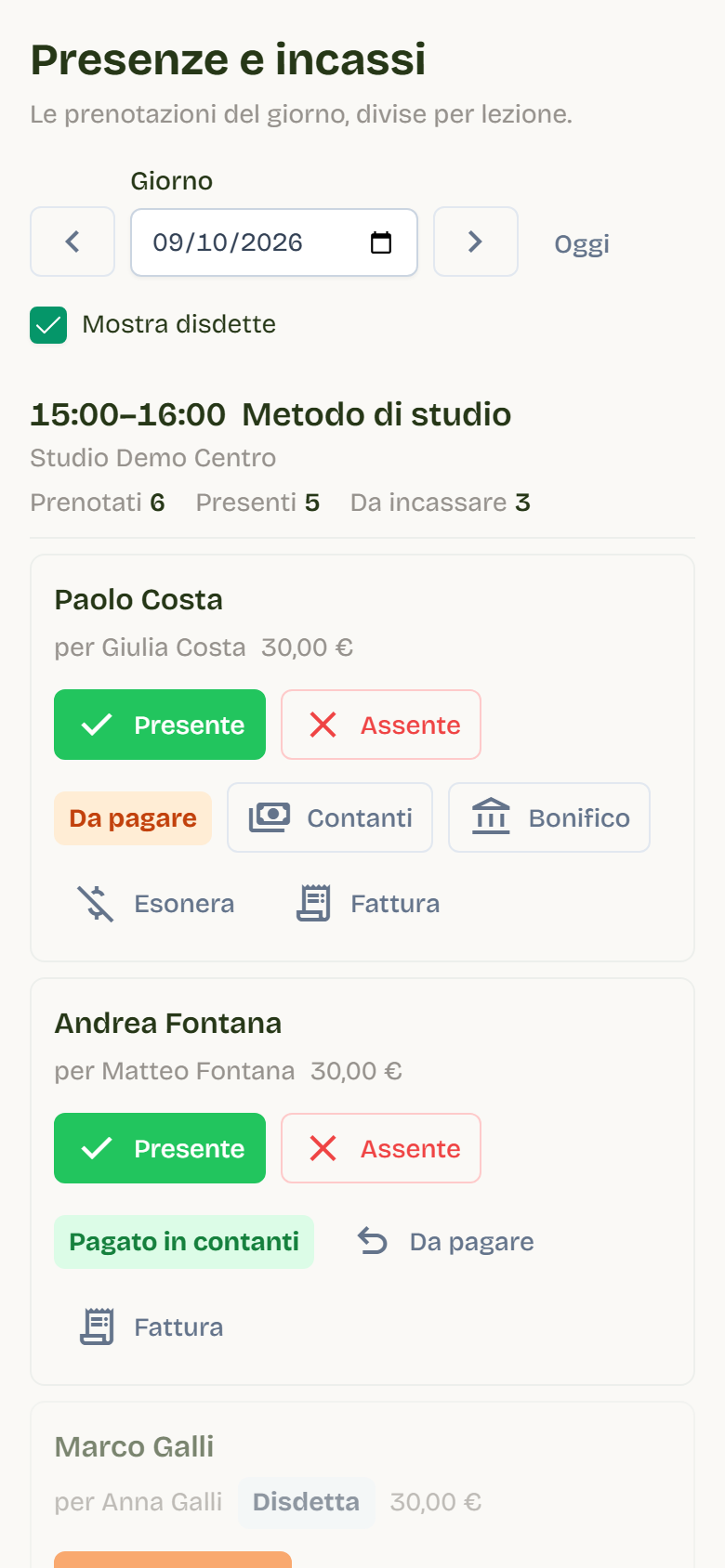
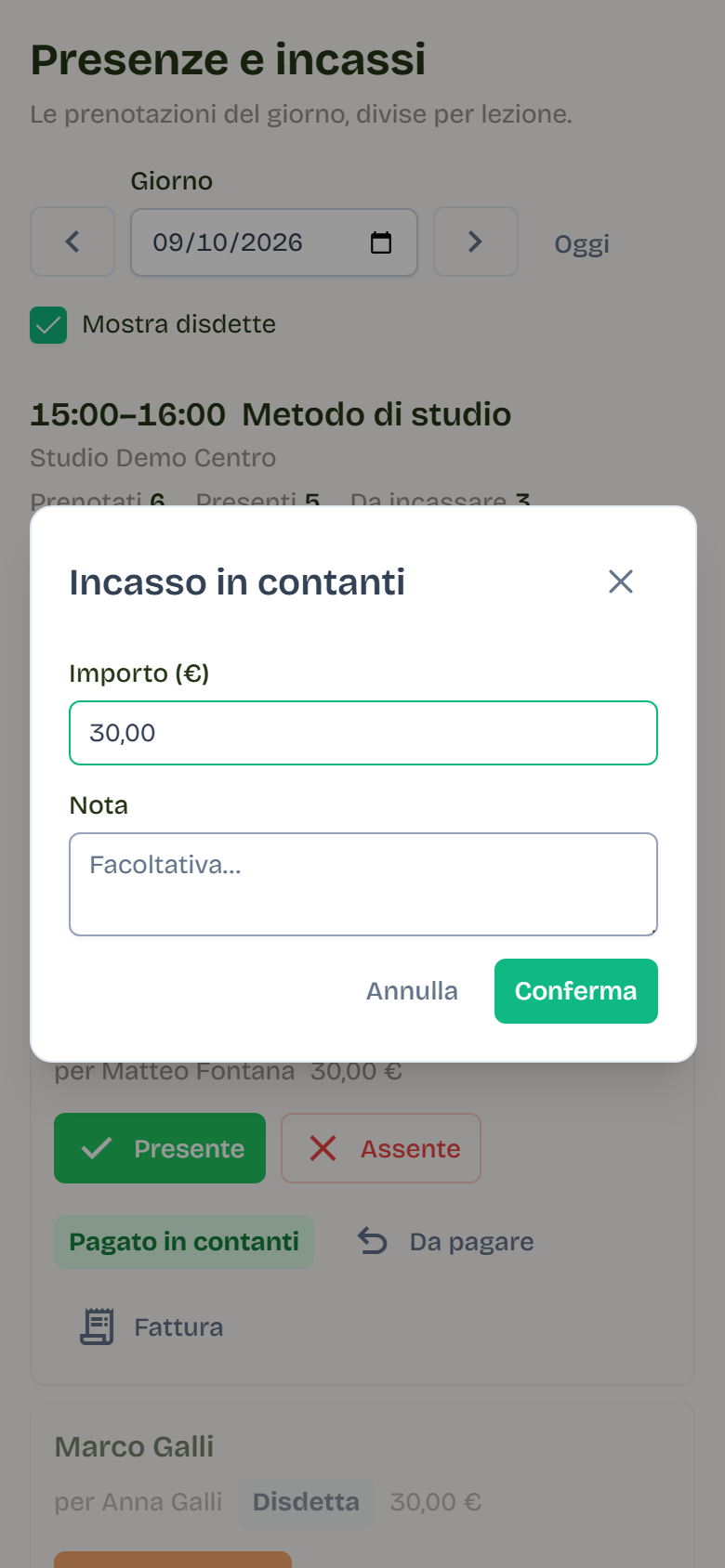
The payment status appears next to the name: Unpaid, Paid in cash, Paid by transfer, Paid online or Waived. A lesson already invoiced shows Invoiced.
Payments recorded here, together with online payments and amounts still to collect, also appear in Invoicing → Payments, with the month's totals per method.
Late cancellations
Turn on Show cancellations to see cancelled bookings too. On a cancellation that came too late press Late cancellation: the spot stays free, but the lesson is still due and the client finds it as unpaid or on the invoice.
Use the register at the end of the lesson: mark attendance, collect from those paying at the studio and create invoices in one pass.
Check-in and attendance
- Check-in is recorded by staff: under Administration > Subscriptions with the Check-in action on the row or in the detail, or from the user record > Subscriptions.
- For future bookings, check-in is active from the booking day.
- Check-in records attendance: if linked to a booking, the entry was already deducted and is not deducted again; without a linked booking it deducts an entry from the plan.
- Check-in is intended for active subscriptions; a prepaid booking can also be recorded with entries exhausted. Details in Subscriptions.
Good practices
- Check the calendar at the start of the day and the week.
- Manage closures as soon as they are known, before new bookings arrive.
- Before reducing a capacity, contact the excess users shown by the dialog.
- Remember that notice periods and limits also apply to bookings collected in person.
- Check capacity, schedules and assigned professionals before publishing new services.