Subscriptions
- Use it to create the plans you sell (monthly, entry packs, packages) and to follow your clients’ subscriptions.
- In the side menu they are under Booking > Studio plans and Booking > Subscriptions.
- The most common task: press New Subscription, choose plan, client and start date, and save.
What it is
Module for defining studio plans and managing client subscriptions: validity, shared entries, suspensions, movements, credits and online sales.
A studio plan is the commercial template (duration, entries, covered services, limits). A client subscription is the plan assigned to a person, with its own dates, entry balance and status.
When it is visible
It is designed mainly for fitness centres, wellness businesses and businesses with packages or recurring access.
- Operator-side: Booking > Studio plans and Booking > Subscriptions in the side menu, or the Studio plans and Subscriptions cards in Administration.
- Client-side: Account > My subscriptions.
- Enabled Admin and Pro can browse; creation, editing and management actions are reserved to administrators.
- If you don't see the sections, the module is not active or you don't have permission.
Main industries
- Fitness
- Wellness
- Appointment-based services
Dependencies
Can be linked to:
- Users: every subscription belongs to a client;
- Services: plans cover one or more services;
- Bookings: bookings deduct entries and respect limits;
- Activity: plan limits combine with the activity rules;
- Closures: freezing extends validity;
- Invoicing and online payments for orders, invoices and refunds.
Studio plans
Creating a plan
- Open Booking > Studio plans.
- Press Add Plan.
- Fill in the dialog:
| Field | What it contains |
|---|---|
| Plan name | plan name, per language; required |
| Description | free text, per language |
| Type | Time-based, Entry-based or Time + entries |
| Included services | one or more services; a service without schedules cannot be linked; linking it makes the service bookable |
| Price | list price |
| VAT rate | percentage; with 0, VAT nature (exemption) appears |
| Duration (days) | for time-based plans; 1/3/6/12-month presets or custom days (1 to 3650) |
| Max entries | for entry-based plans; up to 99999 |
| Online sale enabled | makes the plan purchasable online, if online payments are active |
- Open Advanced settings:
| Setting | What it contains |
|---|---|
| Max bookings per day | Inherit studio limit, a number (1 to 99999) or Unlimited |
| Max bookings per service per day | Standard rule (one per service), a number or Unlimited |
| Allow bookings after expiry | if disabled, you can only book within the expiry |
| Credit cancellations after expiry | if disabled, a cancellation after expiry does not return entries |
- Press Save.
Notes:
- The plan price is considered VAT-inclusive.
- An explicit limit on the plan takes precedence over the activity limit and counts only that plan's bookings.
- Without a custom limit the plan inherits the studio rule.
Plan list
Columns: Plan name, Type, Price, Duration, Max entries, Classes per day · Per service, Service, Status, Actions.
- Status: Active or Archived.
- Row actions: edit, archive/activate, delete.
- The service name is a link that opens the service in Services.
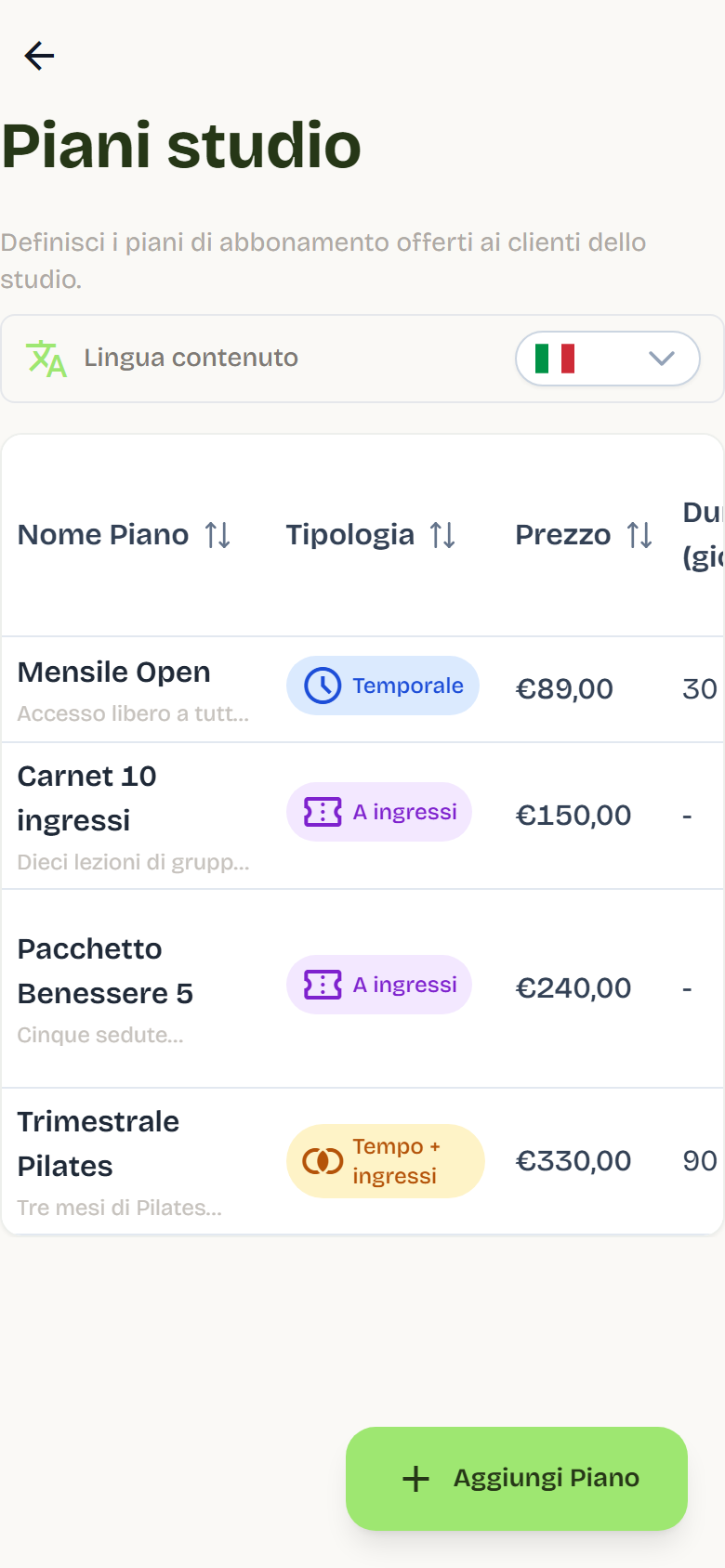
Editing a plan
- Until the plan is assigned you can edit all settings.
- After the first assignment the plan is in use: you can edit the daily rule, online sales, VAT and add services; other settings stay locked. Flo explains this in the dialog.
- If there are open online orders, online sales, VAT and services are locked too.
- You cannot remove a service already linked to a plan in use.
Archiving or deleting a plan
- Archive: the plan is no longer available for new assignments or purchases; existing subscriptions stay valid under current terms. You can reactivate it later.
- Delete: allowed only if the plan has no active, suspended or waiting subscriptions and no linked future bookings. If there is a subscription history, Flo warns that the service title will stay in history and recommends archiving. You cannot delete a service's last plan.
- Before deleting, Flo shows the Users with a linked subscription summary (user, status, expiry).
Services note: a service linked to active plans cannot be deleted; archived and unused plans allow deletion (Services).
Client subscriptions
Assigning a subscription
From Booking > Subscriptions:
- Press New Subscription.
- Choose the Plan.
- Select one or more Customers.
- Choose the Start Date.
- Save.
Multiple assignment shows the result per user ("Successful assignments: X · failed: Y"); the next assignment attempt retries only the failed users.
From the user record > Subscriptions:
- Press Assign subscription.
- Choose Existing plan or Custom.
- For a custom subscription fill in name, type, price, duration (with expiry preview), maximum entries, Covered services and advanced settings.
- Choose the start date and press Create and assign.
Notes:
- A subscription on a multi-service plan uses a single entry balance for all covered services.
- If the service is already covered by an active, suspended or waiting subscription, the new one enters Waiting and activates when the previous one ends.
- Flo sends the assignment email with validity start, expiry and a note that future activities are already bookable.
Subscription list
- Search by name, email or plan.
- Filter by status: All, Active, Expiring, Expired, Suspended, Waiting, Cancelled, with the count next to each entry. Expired also includes subscriptions that ended because their entries ran out; their row shows Used up.
- Columns: Customer, Plan, Start date, Expiry date, Status, Actions. For a Waiting subscription the expiry is not a date but the duration that starts on activation (e.g. "Expires 100 days after activation").
- Row actions: Check-in (active), Suspend (active with expiry), Reactivate (suspended), Cancel (active and suspended), Details.
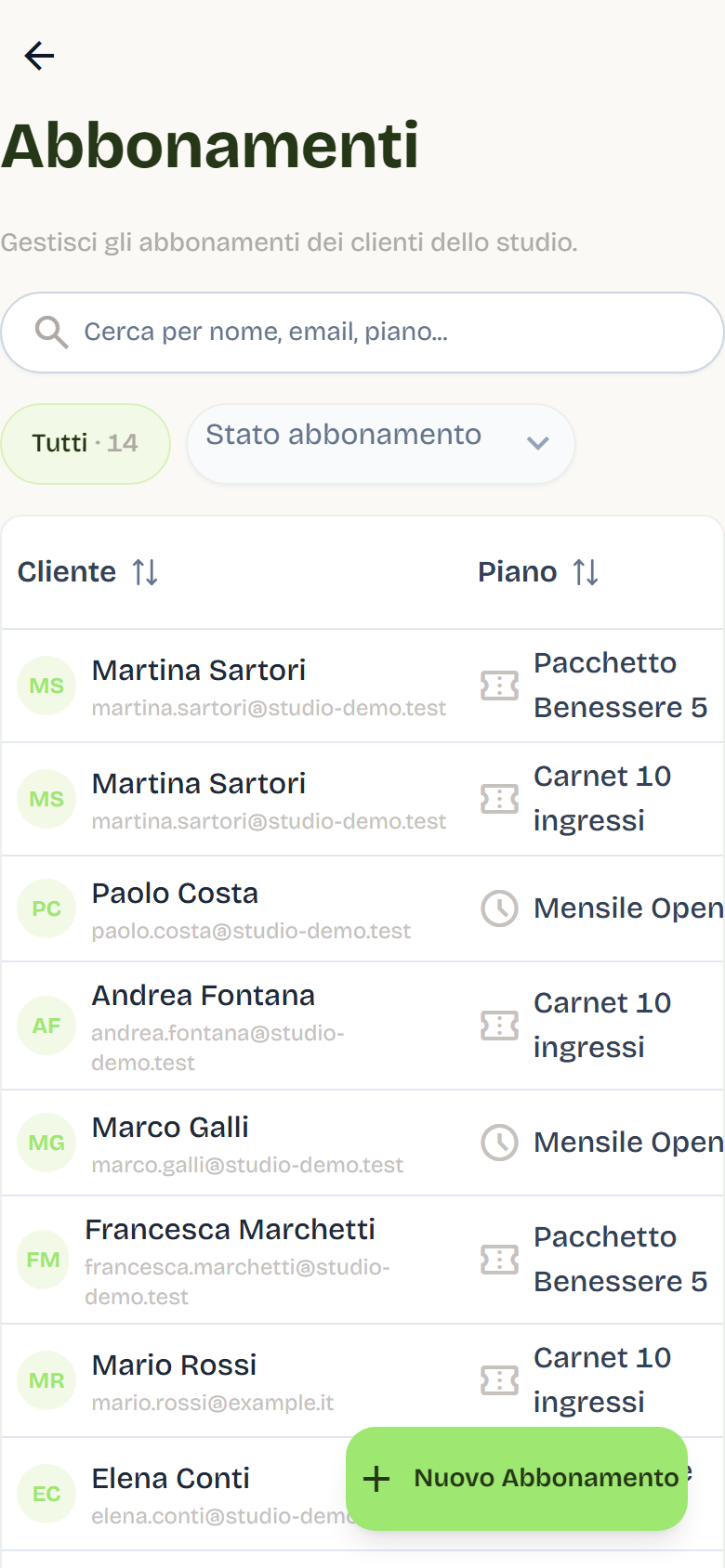
Subscription detail
The detail shows:
- plan and type, Purchased on (purchase date), start date, Valid until with the Edit action, Days Remaining;
- Remaining Entries with consumption bar;
- Upcoming bookings, with check-in available from the booking day;
- Recent Check-ins: date, type (Manual), operator and notes;
- Entry activity: balance movements;
- Subscription History: the client's previous subscriptions;
- Bookings left active: bookings paid online not cancelled by a suspension.
Available actions: Check-in, Credit entry, Suspend, Reactivate, Cancel, Invoice, Refund.
Editing validity
- In the detail press Edit next to Valid until.
- Choose the mode:
- Shift by: Add/Decrease direction, quantity and days, weeks or months unit;
- Choose date: select the new expiry from the calendar.
- Check the preview and confirm.
Notes:
- The new expiry cannot be in the past or before the subscription start.
- If bookings remain after the new date, Flo warns with the count: they are not cancelled automatically.
- Editing is available for Active or Suspended subscriptions with an expiry.
Suspending and reactivating
- Press Suspend.
- Choose the suspension type:
- Until manual reactivation: stays suspended until you reactivate it;
- Suspend until: choose the reactivation date; Flo reactivates automatically.
- Check how many future bookings will be cancelled and confirm.
Effects:
- the status becomes Suspended;
- future non-cancelled bookings are cancelled with credit and Suspension reason;
- Flo sends the suspension email;
- on reactivation the expiry is extended by the effective suspension days (or the scheduled window) and Flo sends the reactivation email.
Bookings left active: bookings paid online in the window are not cancelled; Flo shows them in the detail with Cancel without refund. The spot becomes available again; the entry returns only if the booking has no payment order. Refunds are managed from the order in Invoicing.
Cancelling a subscription
- Press Cancel.
- Add an internal note and check the number of future bookings that will be cancelled.
- Confirm: the operation is irreversible and Flo sends the cancellation email.
Bookings cancelled together with the subscription show the reason Subscription cancelled.
Refunds
- Refund appears for subscriptions paid online.
- Full refund: returns the full paid amount.
- Remaining-period refund: returns the share proportional to remaining days; without an expiry only the full refund is available.
- After confirmation Flo records the refund and prepares the draft credit note; refunds are managed from the order in Invoicing.
Entries and movements
- Credit entry adds an entry to the balance, up to the plan maximum.
- Entry activity lists movements: check-in, entry deducted by booking, entry credited for cancellation, cancelled lesson, removed time, moved to Waiting (with the validity days it keeps) and Activated (with the last valid day).
- Check-in: records the client's attendance. If linked to a booking, the entry was already deducted and is not deducted again; without a linked booking it deducts an entry. Check-in is recorded by staff and is intended for active subscriptions; a prepaid booking can also be recorded with entries exhausted or on a Waiting subscription, without activating it. For future bookings it is active only from the booking day.
Expiries and queue
- A subscription ends by validity ended (status Expired) or entries exhausted (status Used up).
- Waiting subscriptions activate automatically when the previous one on the same service ends.
- While Waiting, a subscription does not expire: its duration is frozen. Validity shows the days that start on activation (e.g. "Expires 100 days after activation"), or "No time limit" for entries-only plans.
- Future bookings of a Waiting subscription stay valid; the detail shows how many there are.
- On activation Flo recomputes start and expiry from the activation day, with the same frozen duration. Cancellations and rebookings while waiting do not shorten it.
- A credit can reopen an exhausted subscription: if the service is busy, it goes back to Waiting.
- On the Book page Flo shows which subscription the booking will use and until when it is valid.
Freezes from closures
A full-day closure with Freeze the time validity of affected subscriptions extends the expiry of time-based and "time + entries" subscriptions (Closures).
Online plan sales
- Enable Online sale on the plan and configure price, VAT and services.
- Clients buy from Account > My subscriptions: they see the offers, choose the start date, fill in invoicing data and complete payment.
- In the same area orders appear, with status and the option to resume an incomplete payment.
- After purchase the subscription appears among the client's subscriptions.
Checkout, invoices and refunds are covered on the Online payments page.
Legacy access (packages and entries)
- If the Subscriptions module is not active for the configuration, booking keeps using the user's Available entries balance (field in user creation; on the Book page it appears as "You have N entries available").
- With the module active the standard model is studio plans and subscriptions; residual access stays visible where provided.
Good practices
- Define services and their schedules first, then plans.
- Don't change the terms of an already-assigned plan: create a new plan.
- Archive plans you no longer want to offer; avoid deleting plans with history.
- Use suspension for pauses (holidays, injury) instead of cancellation.
- Check entry movements when a client reports a wrong balance.
- Before assigning a subscription, check the queue: a new subscription may enter Waiting.