Invoicing
- Use it to issue and receive electronic invoices and to keep the sales register.
- In the side menu it is under Finance > Invoicing: it opens the Electronic invoicing page.
- The most common task: open the Sent tab, check the To send drafts and send them to the SDI.
What it is
Module for electronic invoicing and for invoicing takings managed outside online payment.
The module keeps an invoice register in Flo, in step with the e-invoicing service you connected (the Provider): sent invoices to the Exchange System (SDI) and received invoices from suppliers. From here you can also compose an invoice, import an XML already transmitted to the Agenzia delle Entrate, create drafts from bookings and subscriptions not paid online, generate collective invoices per client and period, export the sales register with the VAT summary, and download the branded courtesy PDF.
For transmitted invoices the provider is the official record; the register in Flo is for searching, checking, and exporting.
When it is visible
The Electronic invoicing page opens from Finance > Invoicing in the side menu. The module is switched on by request: if you don't see the entry, write to support. Administrators see all tabs; enabled professionals (Pro) can view received and sent invoices read-only.
Main sectors
- All sectors with takings to invoice
- Fitness and wellness
- Appointment-based services
Dependencies
Can be linked to:
Settings
In the Settings tab (administrators only) you connect the e-invoicing service:
- Provider: Fattura Elettronica API or OpenAPI.it;
- Username / Password or API token depending on the provider (the status indicates whether they are configured, without showing the values);
- Environment: Test or Production;
- Default sender VAT number;
- Tax data: series, fiscal time zone, and seller record (name, VAT number, tax code, tax regime, address, email);
- Invoice copy texts: header (appears below the logo in the courtesy PDF), footer, and legal notes;
- Prerequisites for online payments: verification of payment provider credentials, invoicing credentials, and seller tax data.
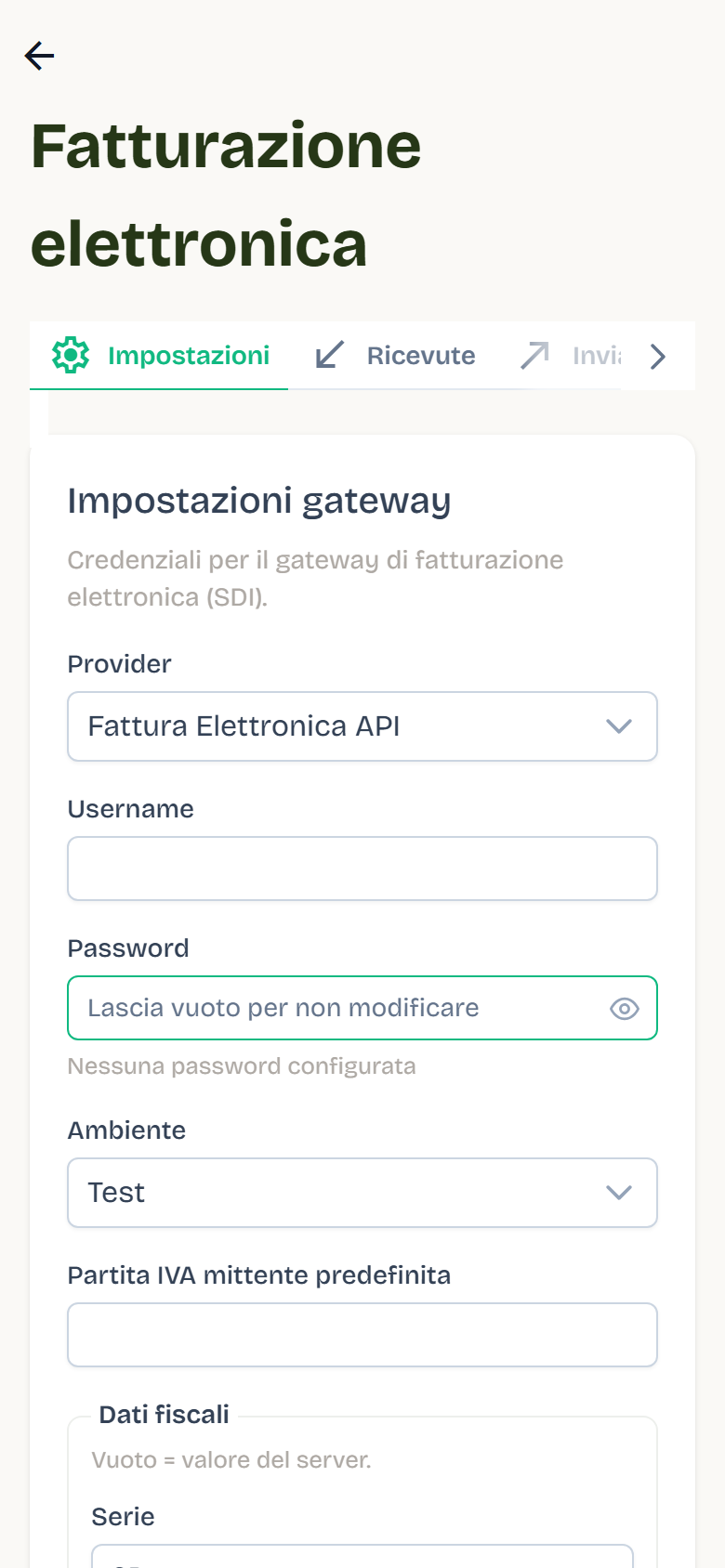
Use Check connection to verify credentials. Fields left empty keep the values already configured on the server.
Flat-rate regime and stamp duty
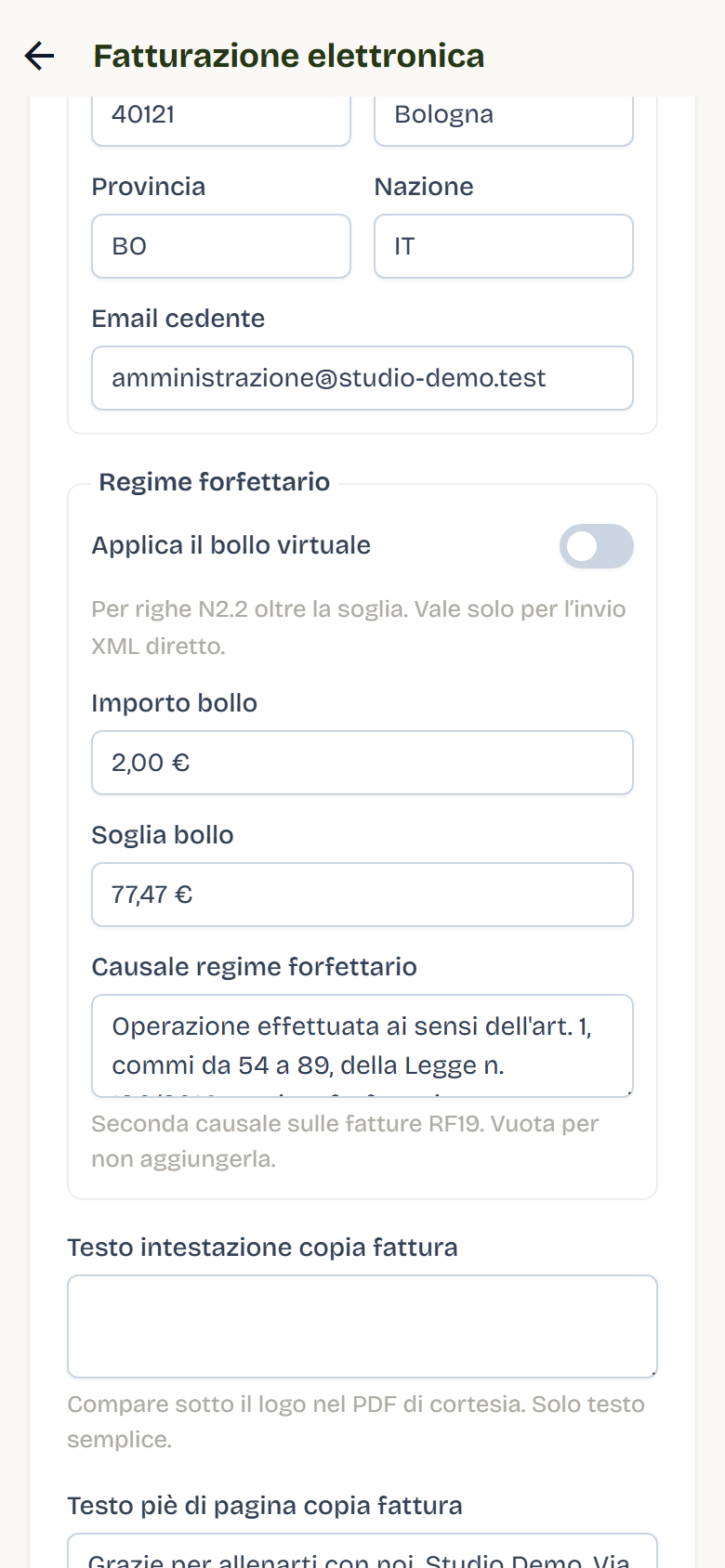
If the studio is under the flat-rate regime (RF19), in the Flat-rate regime section:
- Apply the virtual stamp duty: adds the stamp to invoices with N2.2 exempt lines above the threshold. It applies only to direct XML sending;
- Stamp amount and Stamp threshold: the legal values are already proposed (€2.00 above €77.47);
- Flat-rate regime wording: the second causale printed on RF19 invoices. Leave it empty to skip it.
Sender companies
The Sender companies tab lists the companies registered with the provider as invoice issuers. You can add, edit, and delete them, indicating company name, VAT number, tax code, address, legal form, tax regime, administrative contacts, legal representative, and IBAN.
Note: with OpenAPI.it, company name, tax identifier, and email cannot be changed after creation.
Received and sent
Two tabs with search and pagination:
- Received — invoices received from suppliers. Unread ones have a dot and feed the badge on the tab; opening the detail marks them as read.
- Sent — invoices issued by Flo and imported invoices.
Common actions:
- Sync — downloads updates from the provider and refreshes the register; Sync this one refreshes a single invoice;
- Export CSV — exports the sales register for the period (see below);
- Offline invoice and Collective invoicing — available on sent invoices (see below).
From an invoice's detail you can:
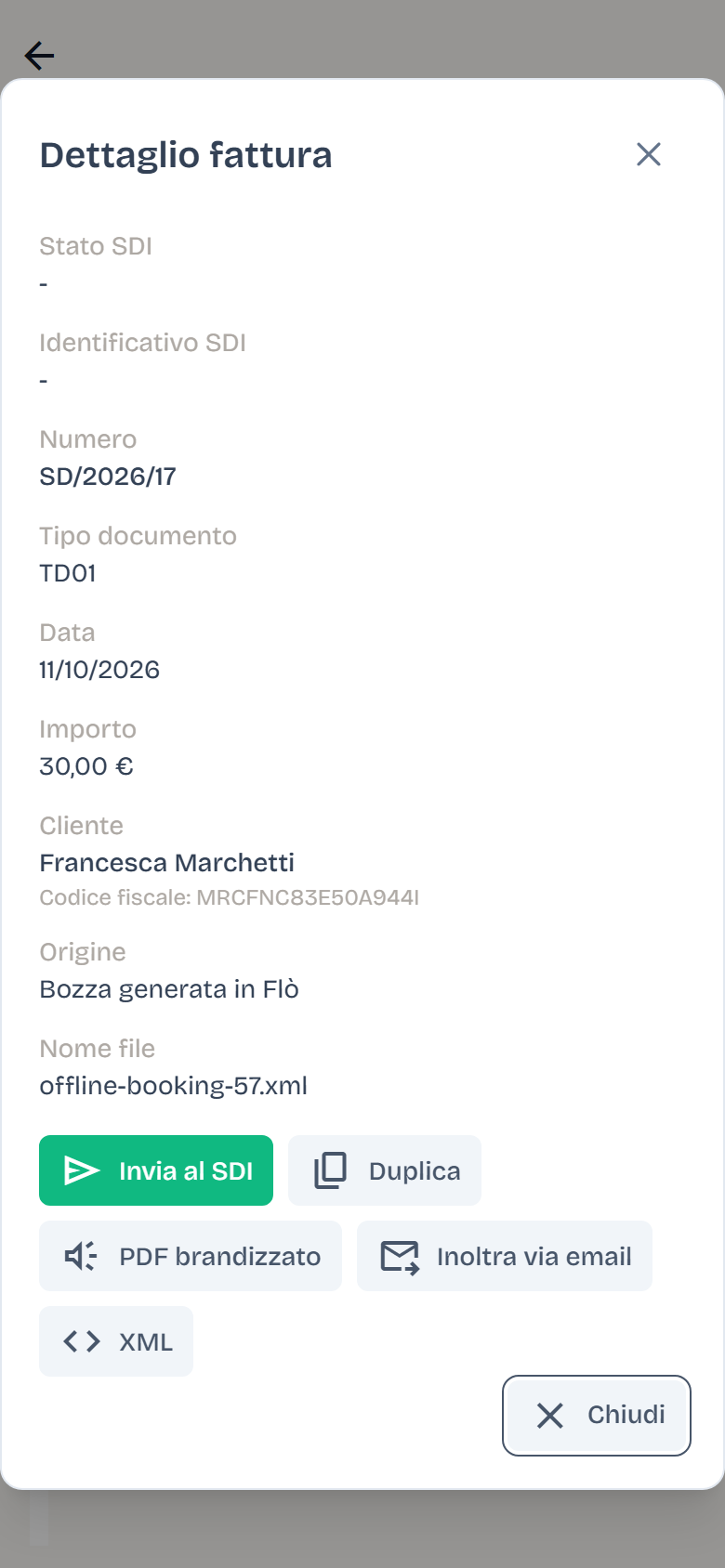
- download the PDF (the provider's, where available), the branded PDF (courtesy copy with company logo and texts), the XML, and the SDI notification (where the provider exposes it);
- Forward via email — sends the branded PDF to a recipient with an optional message (requires email sending to be enabled);
- Resend an already transmitted invoice to the SDI;
- Duplicate a sent invoice to reuse its data in a new one;
- open the linked invoice when the document is a credit note.
Composing an invoice
In the New tab (administrators only) you can:
- fill in the structured fields: sender VAT number, recipient (with Prefill from client to search a client by name or email), document (type, date, number, reason, linked document), payment (terms, method, due date, IBAN), lines (description, unit price, quantity, VAT rate, unit of measure, VAT nature);
- or send an already-validated FatturaPA raw XML, without reprocessing it (only for providers that accept XML).
Available document types: TD01, TD02, TD03, TD04, TD05, TD06, TD24, TD25. For TD04 and TD05, indicating the linked document (number and date of the original invoice) is mandatory.
Select Send invoice to transmit to the SDI.
Importing an XML from the Agenzia delle Entrate
Also in the New tab you find Import XML from Agenzia delle Entrate: choose a complete FatturaPA XML and select Import into register. The import does not use provider credentials: it creates a local draft that you can review and send to the SDI from the Sent tab (see below).
Drafts and sending to the SDI
A draft (imported, composed, or automatically generated) stays local until you send it:
- in the Sent tab the row is marked To send (or Credit note (draft) if it is a TD04);
- use the send icon in the row or the Send to SDI button in the detail;
- confirm: the draft is transmitted to the Exchange System with the configured provider.
In the detail, Source tells where the draft comes from: Draft created in Flò (from a lesson, a subscription or collective invoicing) or Imported locally from the Italian Revenue Agency.
If sending is rejected deterministically, the draft stays retryable with the attempt history and a translated error. If the outcome is uncertain, the invoice moves to Requires review and must be reconciled on the provider before retrying.
Offline invoicing
For takings managed outside online payment, you can create drafts linked to the origin:
- Invoice from booking — from the Sent tab → Offline invoice → Booking: enter the booking ID, the gross amount (optional; if empty, uses the activity price), and an optional description;
- Invoice from subscription — from the client subscription detail → Invoice, or from the Sent tab → Offline invoice → Subscription: the amount is pre-filled from the plan price and can be overwritten.
Invoice from a lesson
The quickest way: in the Attendance and payments register press Invoice on the client's row. Flo creates the draft with the lesson price, or with the agreed price if the client has a per-lesson agreement, and opens it here. A late cancellation can be invoiced too.
Rules:
- a booking already paid online, covered by a subscription, or already invoiced cannot have a second invoice;
- a subscription paid online is invoiced by the payments flow, not from here;
- the invoice is born as a draft with its own fiscal numbering: review it and send it from the register;
- the recipient uses the user's billing data; a valid tax code or VAT number is required.
Collective invoicing
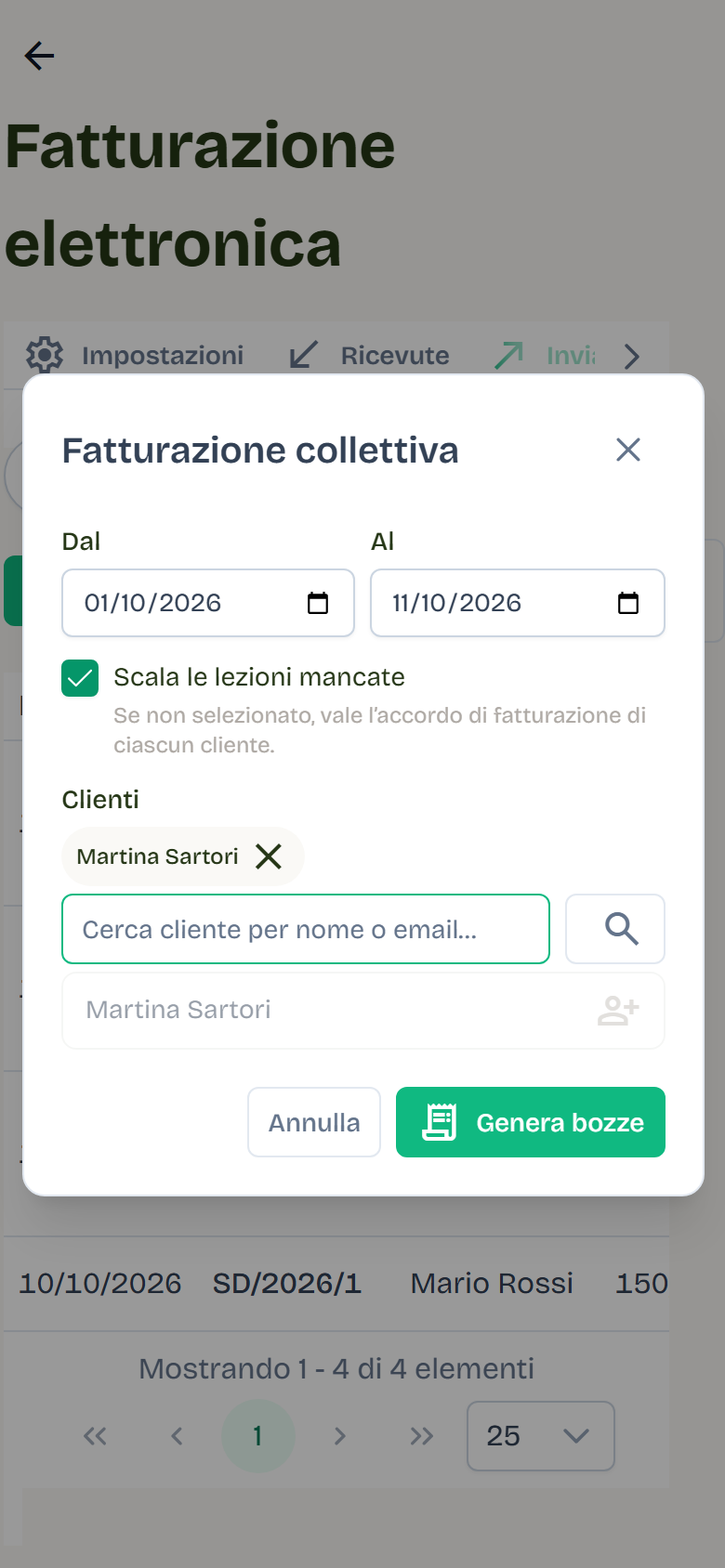
From Sent → Collective invoicing you generate one draft per selected client, aggregating over a date range:
- bookings that are not cancelled (late cancellations are included), not paid online, not covered by a subscription, and not yet invoiced;
- shares of plans sold in the period, not yet invoiced: the sale date counts, not the start date, so a queued renewal that activates the following month is invoiced once, in the month you sold it.
How to fill in the window:
- choose From and To;
- in Service keep All services, or pick one service: each draft then invoices only its bookings and the plans that include it;
- search clients by name or email in Customers and add them;
- decide whether to turn on Deduct missed lessons: when unchecked, each client's billing agreement decides;
- press Generate drafts.
For clients with a flat-fee agreement the draft charges the weekly or monthly amount; with Deduct missed lessons it subtracts the value of the absences. Per-lesson agreements use the agreed price. Late cancellations stay due.
The payment block follows how each line was settled: lessons paid in cash, by bank transfer or card keep their method, while plan shares and lessons still to collect go into an instalment due in 30 days. The instalments always add up to the document total.
Limits: maximum 366-day range, maximum 100 clients, maximum 200 lines per client. A period already invoiced for the same client cannot be invoiced again. Two different services in the same period are the exception; a draft on all services also covers every single service. For each client, the result indicates: draft created with number, nothing to invoice, period already invoiced, or error.
Recurring invoices
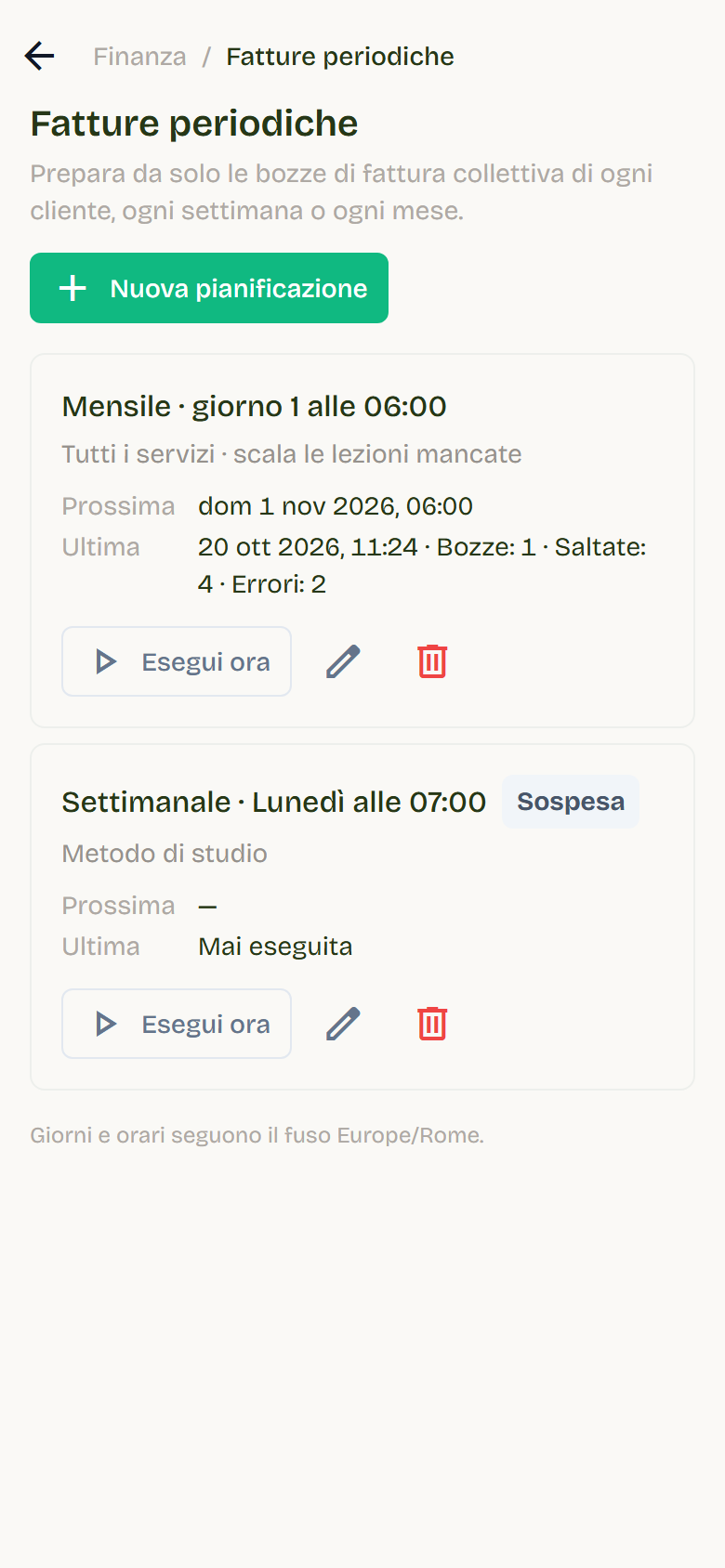
If you always invoice on the same rhythm, Flò can prepare the collective drafts for you. You find them in Invoicing → Recurring invoices, a side-menu entry for administrators only.
Press New schedule and choose:
- Frequency: Weekly or Monthly;
- Day: a day of the week, or a day of the month from 1 to 28, so the invoice also runs in February;
- Time: the hour on the chosen day;
- Service: All services or a single one, as in collective invoicing;
- Deduct missed lessons: when unchecked, each client's billing agreement decides;
- Active: uncheck it to pause the schedule without deleting it.
Each run invoices the period that just closed: the Monday-to-Sunday week before the chosen day, or the previous month. It creates one draft per client with bookings or plans sold in the period and leaves it in Sent, ready to check and send. Nothing goes to the SDI on its own. Days and times follow the time zone shown under the list.
Each row shows the cadence, the next run and the outcome of the last one: drafts created, skipped and errors. A paused schedule has no next run. When a run creates drafts or hits errors, administrators receive a summary email; when there was nothing to invoice, nothing arrives.
Run now invoices the period closed today right away and shows the outcome on the row, without moving the next run. A period already invoiced is skipped, so running it twice creates no duplicates. Deleting a schedule leaves the drafts already created untouched.
A customer with neither a tax code nor a VAT number, or with an invalid VAT number, counts among the errors: complete their billing details and the next run includes them.
Sales register and VAT summary
From Sent → Export CSV choose the period and download a file with:
- one register row per sent invoice not in draft: date, number, document type, counterparty, VAT number, and total (credit notes have a negative sign);
- one vat_summary row per VAT rate and nature, with taxable amount and tax, derived from the transmitted XML;
- one unparsed row with the count of invoices whose XML is not readable, so the two sections stay reconcilable.
The payment block follows how each line was settled: lessons paid in cash, by bank transfer or card keep their method, while plan shares and lessons still to collect go into an instalment due in 30 days. The instalments always add up to the document total.
Limits: maximum 366-day range and 5,000 rows per export. The file is semicolon-separated and ready for Excel in Italian.
Credit notes
Credit notes are TD04 documents linked to the original invoice (number and date). They are created:
- from the composer, selecting TD04 and indicating the linked document;
- automatically when a refund is confirmed after the invoice was issued: Flo prepares a TD04 draft linked, with the refunded lines and amount, to review and send from the register.
Drafts never reuse an already-assigned number, and an identical second refund does not create a duplicate document. If e-invoicing is off, the refund stays valid and the missing note is reported in the order.
Branded PDF and email
- Branded PDF: courtesy copy generated from the invoice data, with logo, header below the logo, footer, and configured legal notes. It is also available for received invoices.
- Email forwarding: from the invoice you can send the branded PDF to any recipient with an optional message.
- Automatic lesson email: after a booking payment, when the invoice is issued Flo sends the client an email with the PDF and a message identifying the purchase (activity and date). If email sending is disabled, sending results as Not sent.
SDI states
In the register, the state is the one reported by the provider. Flo treats successful transmission outcomes (INVI, PREN, CONS, NONC, ACCE, DECO) as confirmed and deterministic rejections (ERRO, RIFI) as cases to correct before retrying; an uncertain outcome stays in Requires review until verified on the provider.
- To send — local draft not yet transmitted.
- Sent — document transmitted, awaiting or with final SDI outcome.
- Rejected / Discarded — deterministic rejection: correct the data and retry.
- Requires review — unconfirmed outcome: verify on the provider before any retry.
Best practices
- Fill in the Tax data and invoice copy texts carefully: they apply to all company invoices.
- Keep the series and fiscal time zone aligned with accounting.
- Before sending an imported or refund-generated draft, re-read lines, amounts, and the linked document.
- Use Sync regularly to align SDI states and the receipts badge.
- Export the register at month end and keep the CSV with the VAT summary for the accountant.
- If an invoice requires review, first verify on the provider portal and then retry from the register.