Closures
In short
- Use it to close a whole day or only some times, for example for holidays, public holidays or maintenance.
- In the side menu it is under Booking > Closures, or from the Closures card in Administration.
- The most common task: pick the date in the calendar, enter the reason and confirm: Flo cancels the bookings and notifies clients.
What it is
Module for managing unavailable days, time ranges or single activities: holidays, vacations, maintenance or closure of one or more times.
A closure blocks bookings, cancels existing ones and credits back the consumed entries.
When it is visible
It is visible only when the Bookings module is active.
It appears under Booking > Closures in the side menu and under Administration > Closures. Users with read-only permission see the list without being able to create or edit.
Main industries
- Fitness
- Wellness
- Appointment-based services
Dependencies
Depends on:
Can involve:
- Team
- Locations
- Services
- Subscriptions: freezing extends validity
Creating a closure
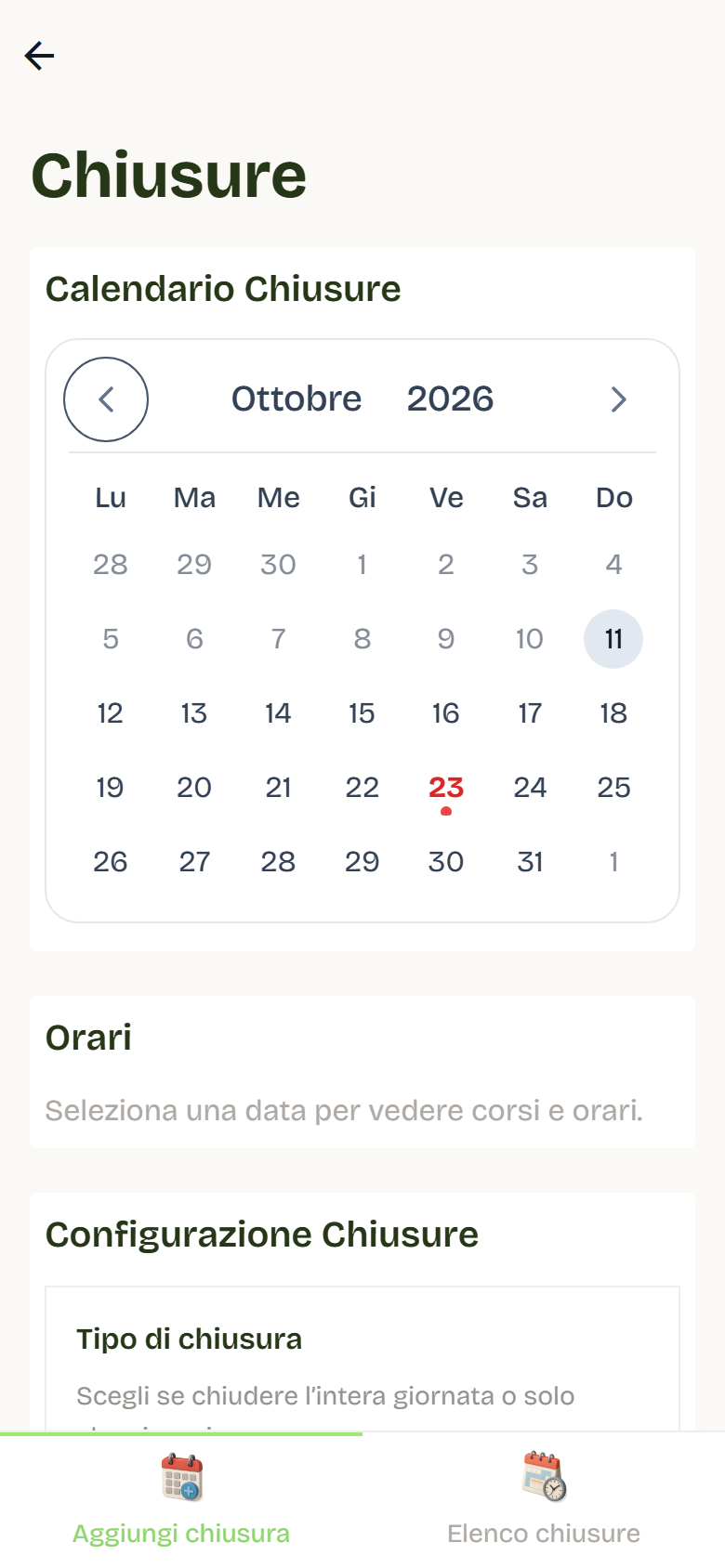
- Open Administration > Closures and select Add Closure.
- Choose the Closure type: Full day or Specific times.
- Fill in When:
- for a full day select the Date range in the calendar and, if needed, add Other individual dates; the summary shows the effective dates;
- for specific times select a date and then the times to close, grouped by service.
- Fill in Reason: write one or more reasons and separate them with a space, comma or Enter. Already-saved reasons are suggested again. The reason is required.
- Fill in Closure Description (optional, per language).
- For a full day you can choose a Service (empty = Whole studio) and enable Freeze the time validity of affected subscriptions.
- Press Add Closure, check the summary and confirm.
Rules:
- dates must be in the future;
- a closure can include at most 366 dates;
- you cannot create a duplicate closure on the same date with the same characteristics;
- you cannot close a date with an online payment in progress: "An online payment in progress protects this time slot. Wait for it to expire or manage the order.";
- subscription freezing is available only for full days.
On confirmation Flo shows the Closure summary: effective days, cancelled bookings, credited entries, extended subscriptions and added validity days.
Effect on existing bookings
- Flo cancels future, not-yet-cancelled bookings included in the closure.
- The consumed entry is always credited back, even when the plan requires a custom credit.
- After saving, Flo sends the cancellation email with service, date and time.
- Past lessons are not touched.
- In the client history the booking appears as Cancelled, not as "Customer cancellation", with the description or reason if present.
Effect on subscriptions
- With Freeze the time validity of affected subscriptions enabled, time-based and "time + entries" subscriptions receive one day of validity for each effective closure day.
- Subscriptions stay active: freezing does not suspend them.
- The extension is not applied twice for the same date, even if multiple closures overlap.
- Already-accrued days stay valid even if the closure is later edited or deleted.
Closure list
Columns:
| Column | Content |
|---|---|
| Date | closure date; for grouped operations shows "Operation over N dates" and "N time ranges" |
| Start time | start time or "-" |
| End time | end time or "-" |
| Giornata intera | yes/no indicator |
| Reason | saved reason or "No reason" |
| Service | involved service or the whole studio |
| Description | description or "No description provided"; with Time validity frozen when active |
| Azioni | Edit and Delete |
Actions:
- Edit is available only for operations without past dates; the whole operation is updated as a group.
- Delete deletes the whole operation, with confirmation. Past closures stay on record without actions.
- Deleting a closure does not bring already-cancelled bookings back to life: entries stay credited.
Communication to users
- The automatic email is sent after the closure is saved.
- Reason and description help clients understand why: write them clearly.
- For long closures, notify clients in advance through other channels too, e.g. a newsletter from the Communication module.
Good practices
- Manage closures as soon as they are known, before new bookings arrive.
- Avoid last-minute changes when many users are involved.
- Enable freezing for holidays and long closures, so subscriptions don't lose days.
- Before saving, check dates, times and involved services in the summary.