Brand and identity
From Administration > Brand identity you manage the brand's assets and general rules: logo, palette, fonts, and library assets.
The features in this area are only available if your Flò space uses your own brand instead of Flò's. If you don't see Brand identity or its tabs, ask support.
The page has two tabs:
- Brand kit: official logo, colors, and typography.
- Brand assets: shared library of icons and images.
Theme and brand metadata are configured by the Flò team: to change them, ask support.
Brand kit
The Brand kit collects the official elements to use across all brand materials.
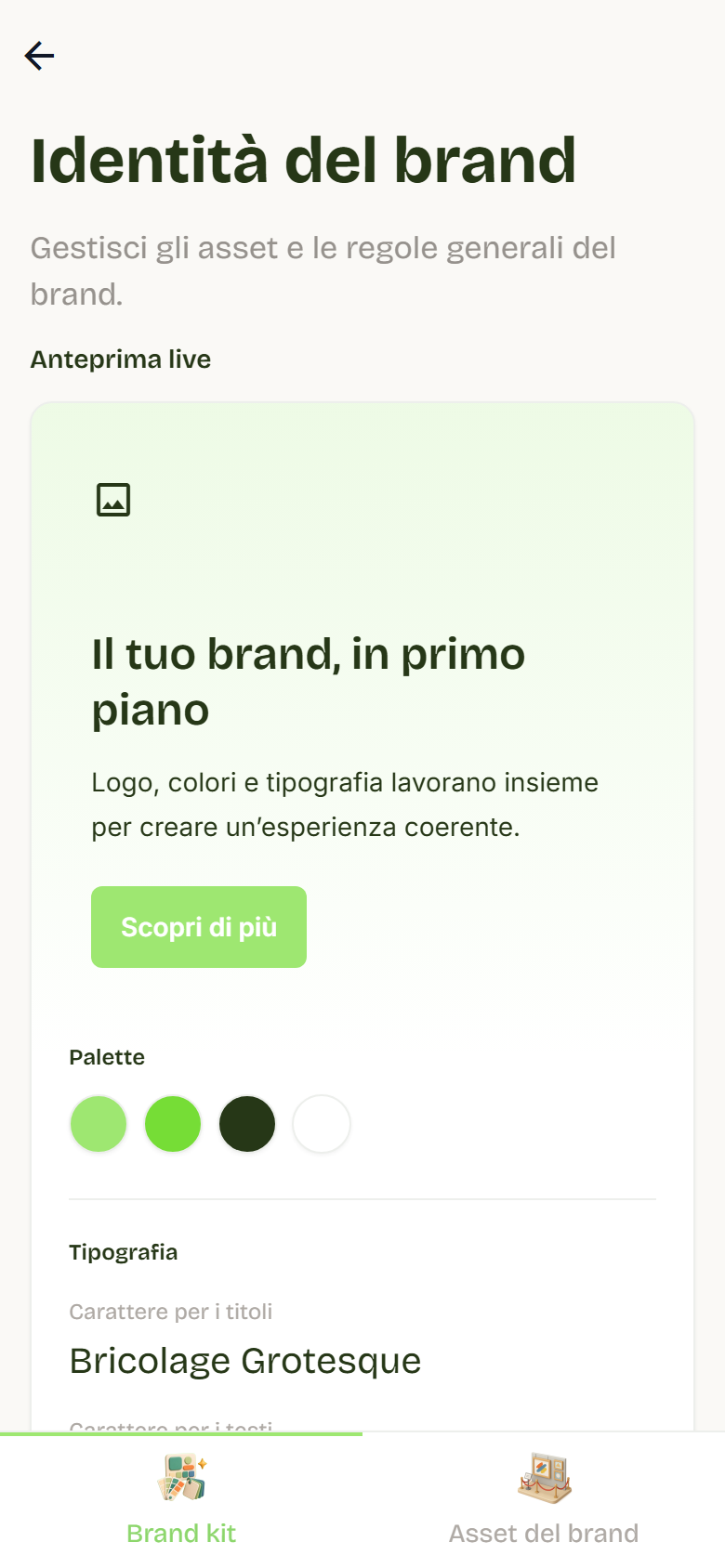
- Logo: upload, replace, download, or delete the logo. Images are accepted (PNG, JPG, WebP, SVG, or GIF) up to 2 MB.
- Brand colors: set the Primary color, Secondary color, Text color, and Background color. You can download the palette as CSS or JSON.
- Typography: set the Heading typeface and the Body typeface, uploading a TTF, OTF, WOFF, or WOFF2 file up to 10 MB or pasting a Google Fonts link.
- Live preview: shows logo, colors, and typography together, so you can check consistency before saving.
- Download brand kit: downloads a ZIP with the brand elements, including the active images from the Brand assets library.
Who can do what:
- Admins and SuperAdmin edit and save.
- Pros can view and download, if enabled by role visibility.
Brand assets
The Brand assets library is the shared space for icons and images created for the brand.
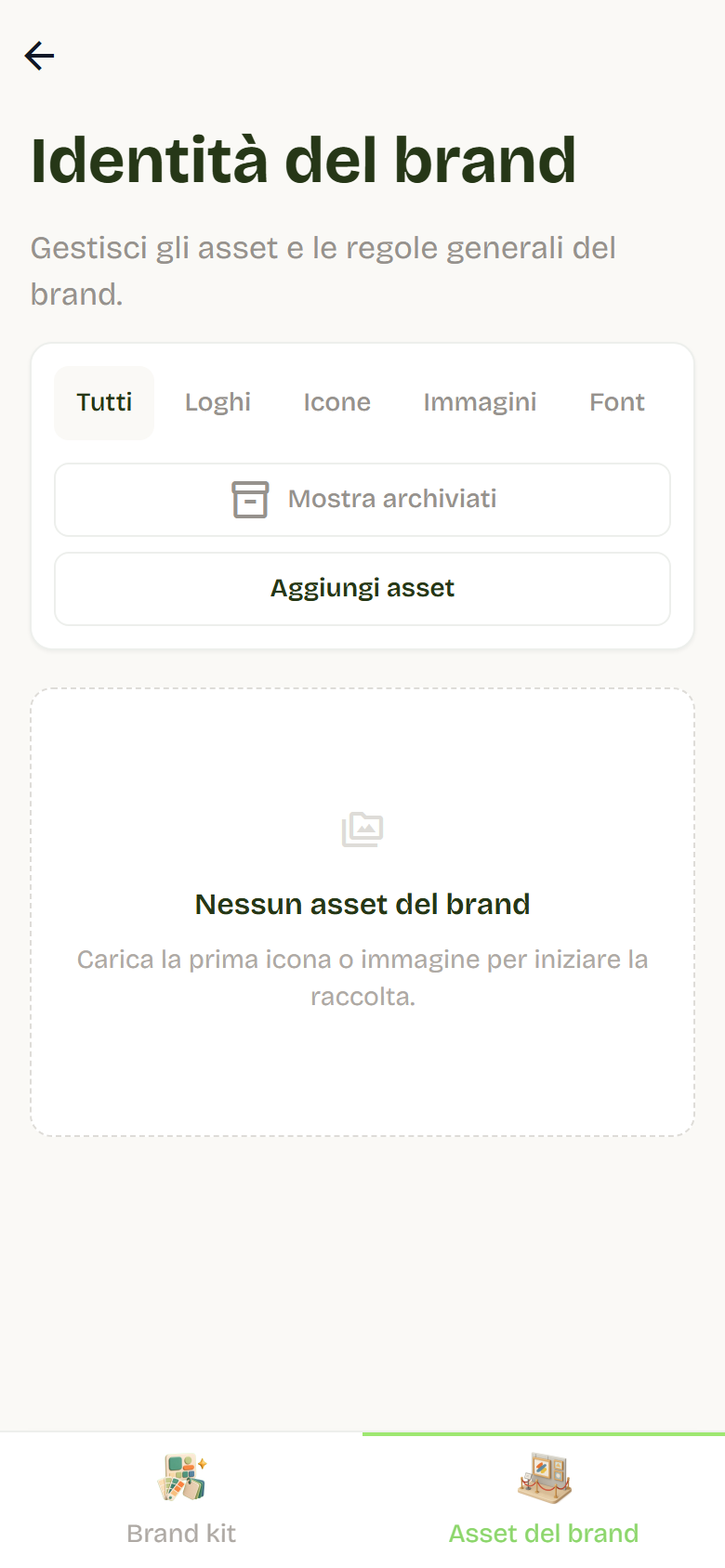
- Filters: All, Logos, Icons, Images, Fonts. When collections exist you can also filter by Collection.
- Add asset: upload one or more images (PNG, JPG, WebP, SVG, or GIF up to 10 MB) and fill in the metadata:
- Asset name;
- Type (Icon or Image);
- Variant (e.g. light, dark, monochrome);
- Collections: type a label and press space, comma, or Enter. You can add more than one and reuse existing collections;
- Description and Alternative text.
- With multiple files, metadata is shared. If you leave the name empty, each asset uses the file name.
- Archive an asset to remove it from the view without deleting the file; with Restore it becomes available again. Show archived also shows archived assets.
- You can Download a single asset or edit metadata with Edit asset.
- The Brand kit logo and fonts appear as linked Brand Kit entries in read-only mode.
Admins and SuperAdmin upload and edit; Pros views and downloads, if enabled.
Theme (SuperAdmin only)
The app theme is configured by the Flò team. If you want to change it, ask support.
Brand metadata (SuperAdmin only)
The app title, search-engine descriptions, fonts, and installable-app details are configured by the Flò team. If you want to change them, ask support.
Login
From Administration > App experience > Login you configure the look and rules of the sign-in screen.
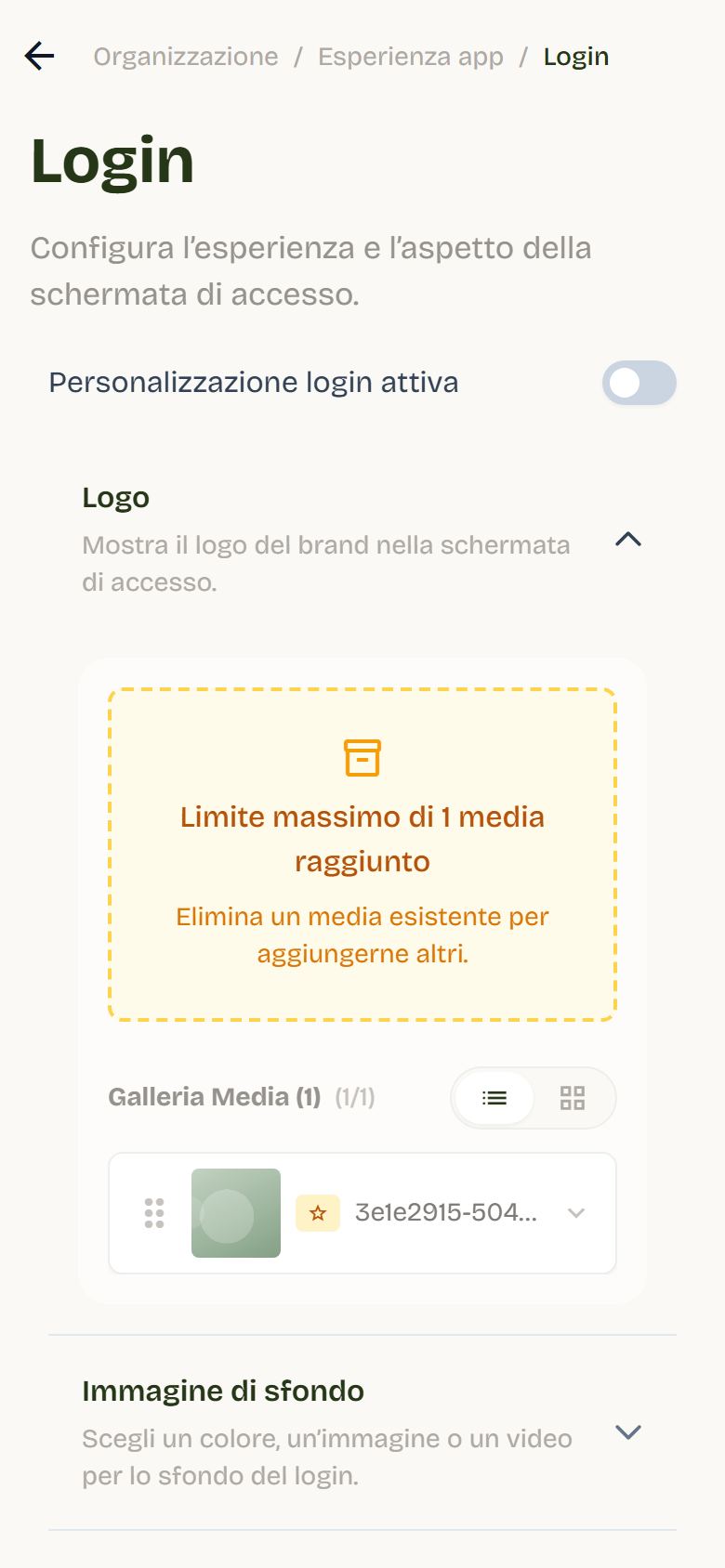
- Login customization enabled: enables or disables personalization.
- Logo: upload the logo shown on the sign-in screen.
- Background image: choose Color, Image, or Video, with background color and supporting file.
- Access requirements and restrictions: Require phone number and Only admins can log in.
- Sign-in methods: see which methods are available (Email and password, Google, Apple) and whether they are active.
- Login preview: check the result before saving.
Admins and SuperAdmin edit; Pros views, if enabled.
App installation
From Administration > App experience > App installation you configure the app your clients install on their phone.
- Installation link: open the link on the device or scan the QR code, then use the browser's Install app action.
- App icon (PWA): choose a square image (PNG or WebP) of at least 512 px. You can adjust the Safe-zone inset and Generate icons: Flo produces home screen, iOS, favicon, and splash (2048×2732) icons and saves them automatically.
- With at least a 10% margin the icon is declared maskable; below that threshold it stays any.
- Restore the Flò icon removes the custom icon.
- Apps already installed on the home screen keep the previous icon: iOS and Android store it at install time.
- App name, Short name, Status bar colour, and Background colour of the installed app.
- Open the manifest to check the installable-app details Flo generated.
- User messages: customize the message shown to users when they open the instructions for installing the app.
Admins and SuperAdmin edit; Pros views, if enabled.
Permissions summary
| Feature | Admin / SuperAdmin | Pro |
|---|---|---|
| Brand kit (editing) | Yes | No |
| Brand kit (viewing and downloading) | Yes | If enabled |
| Brand assets (upload, edit, archive) | Yes | No |
| Brand assets (viewing and downloading) | Yes | If enabled |
| Theme and Brand metadata | Flò team (ask support) | No |
| Login | Yes | Viewing, if enabled |
| App installation | Yes | Viewing, if enabled |
To enable areas for the Pro role see Access and permissions. For the app dashboard see Dashboard and home.