Public forms
- Use it to create your site’s contact forms and read the requests that come in.
- In the menu it is under Website > Form pubblici (Public forms).
- The most common task: press Richieste (Requests) on a form and update the status of open requests.
What it is
Module for creating public forms, receiving requests, and managing the stored data.
Each form has configurable fields, per-language texts, consent rules, and a presentation widget. Requests submitted by visitors land in a searchable archive, with linked contact and attachments.
When it is visible
It is visible when the Public forms module is active for your studio and the user has the required permissions.
Access depends on the role: form and request management is for operational profiles, retention settings are reserved to higher profiles.
Main sectors
- Enterprise
- Real Estate
- Studios with contact forms, information requests, or applications on the site
Dependencies
Can be linked to:
- Contacts (central archive)
- Multilingual
- Studio website
Creating a form
The Form tab shows the Form configurati (Configured forms) list: each form shows its slug, status, and version.
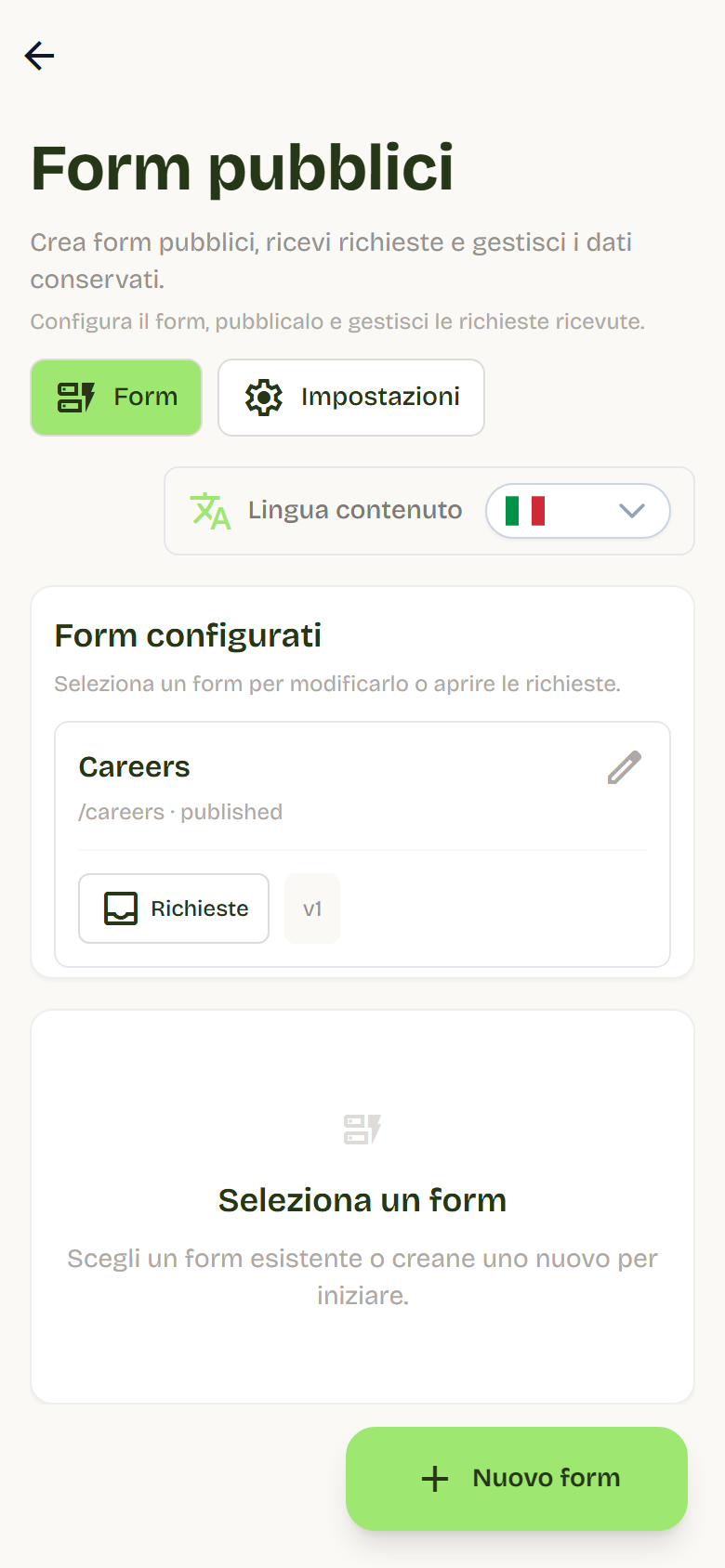
- Open Website > Form pubblici, Form tab.
- Press + Nuovo form (New form).
- Fill in name, slug, and description in the selected language.
- Add the fields and configure their rules.
- Configure the public widget with layout and per-language texts.
- Set consents and retention.
- Save and select Publish.
Only the published version is available to the site: changes that are saved but not published stay in administration.
Form fields
For each field you configure:
- Key: simple, unique identifier, used in the submitted data;
- Label: the label shown in the form;
- Type: Text, Email, Phone, Long text, Selection, Checkbox, or File;
- Required field;
- specific rules: maximum length, options for selections, accepted extensions for files.
File fields use direct, private upload: the file is never reachable via a public address.
Public widget
The widget defines how the form appears on the site:
- Layout: Stacked (one column) or Compact (less space on desktop);
- Show title and Show description;
- per-language texts: title, description, button text, and the message shown after submission.
The preview in administration uses the default language; the site uses the active languages and, if a text is missing, falls back to the main language.
Where the form appears
The site finds the published form through its slug, the short name that identifies it: the position on the page (for example contacts section, applications page, or modal window) is decided by the site, while content and fields are managed from Flo without changing the site.
The form's public page is protected by anti-bot verification and request limits.
Consents and privacy
- Privacy and Terms are two distinct, mandatory consents: visitors must accept both to submit.
- For each consent you can indicate the document version; the accepted version is recorded with the request.
- Marketing consent is not part of this module.
Received requests
Requests are browsed per form: press Richieste (Requests) on the form you need. You can filter by status with Filtra per stato (Filter by status): Open, In progress, Closed, Spam.
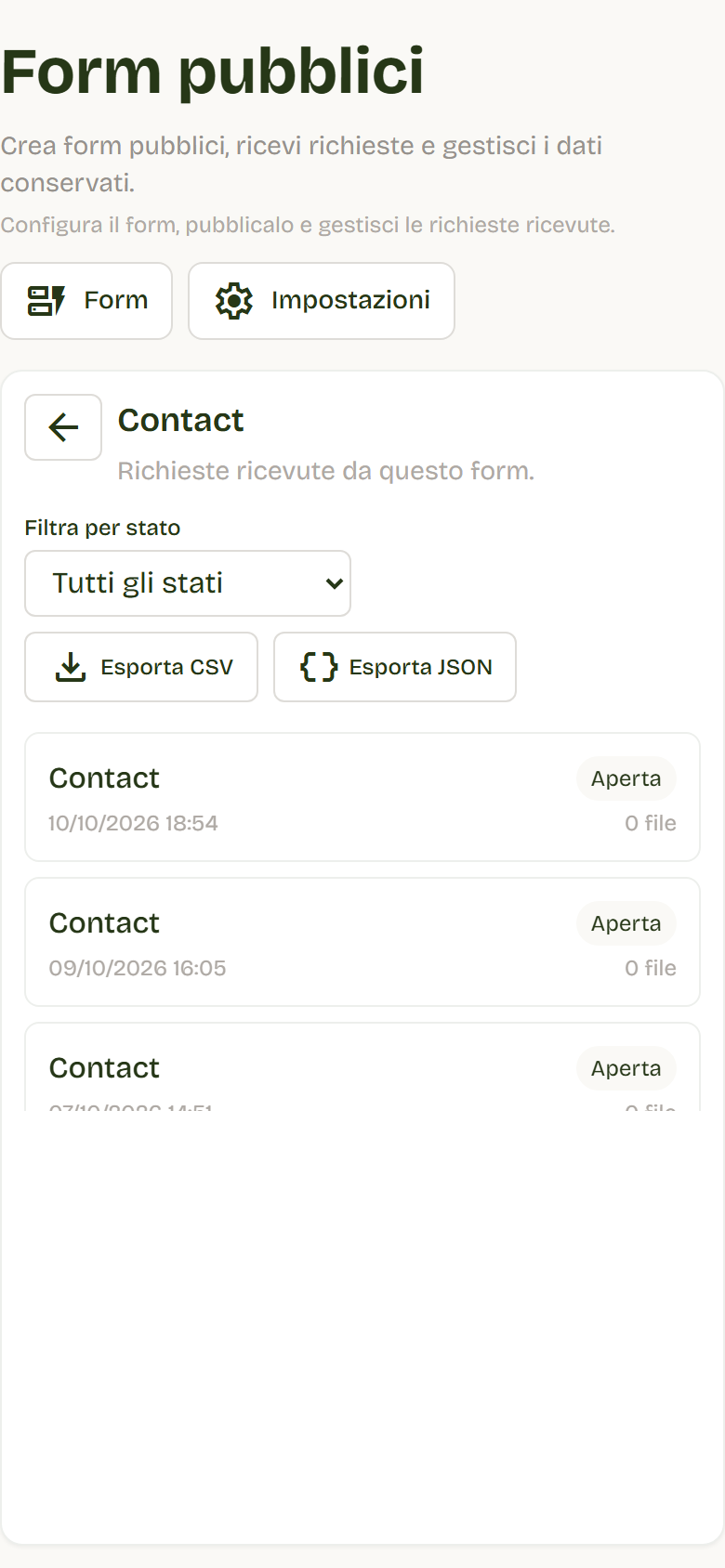
Request detail is organized in tabs:
- Summary: main data, consents, and retention expiry;
- Contact: the linked contact, with search, manual linking, and unlinking;
- Attachments: preview for images and PDFs, private download for other files;
- Submitted data: the form values, with the option to see technical data;
- Access audit: reads, downloads, and changes to the request.
Available operations:
- Export CSV or Export JSON of the filtered requests;
- Delete a request and its linked files (permanent operation, reserved to higher profiles);
- Legal hold: blocks automatic deletion of the request and files for one year; you can enable and remove it from the detail.
Linked contact
When a request arrives with a valid email, Flo searches the archive for the contact:
- if it does not exist, it creates it;
- if it exists, it enriches the missing data.
Linking is automatic but correctable: from the detail you can search for another contact, link or unlink it. If automatic linking fails, the request is not rejected: you can link it manually.
Retention and settings
The Retention settings (reserved to higher profiles) define:
- Request retention (days) and File retention (days);
- Pending upload expiry (hours): deletes uploads that were started and never confirmed;
- Audit retention (days);
- Export lifetime and Upload URL lifetime (minutes);
- Maximum file size and Allowed file types;
- Legal hold: enables blocking of automatic deletion.
On expiry, maintenance deletes the data and linked files; legal hold blocks deletion while it stays active.
Best practices
- Define fields and consents first, then publish: every change must be republished to reach the site.
- Use simple, stable keys: they are the names you use to read request data.
- Always fill in the Privacy and Terms document versions.
- Regularly check open requests and update their status.
- Link or correct contacts to keep the archive tidy.
- Set retention periods consistent with the studio's needs and enable legal hold only when truly needed.