Dynamic content
- Use it to update on your own the texts, photos, and attachments of sections already on your site, such as your rooms or an event.
- In the menu it is under Website > Contenuti dinamici (Dynamic content).
- The most common task: press Gestisci (Manage) next to a content item, change the text or photos, and save.
What it is
A category of modules that lets the studio edit and save existing parts of the site through Flo.
Dynamic content is an already-planned section of the site that does not stay fixed in code, but can be updated independently by the studio. In Flo the module was previously referred to as Gallery; each entry in the list is a content item made up of:
- name and description, with one version per active language;
- a gallery of media (images, videos and GIFs);
- any downloadable attachments.
When it is visible
It is visible when the studio chooses to make parts of their site editable.
Examples
- Services
- About
- Privacy policy
- Gallery
Main sectors
- Fitness
- Real Estate
- Enterprise
- Studios with an updatable site or visual sections
Dependencies
Can be linked to:
How it works
Open Website > Contenuti dinamici to see the list of your site’s content items.
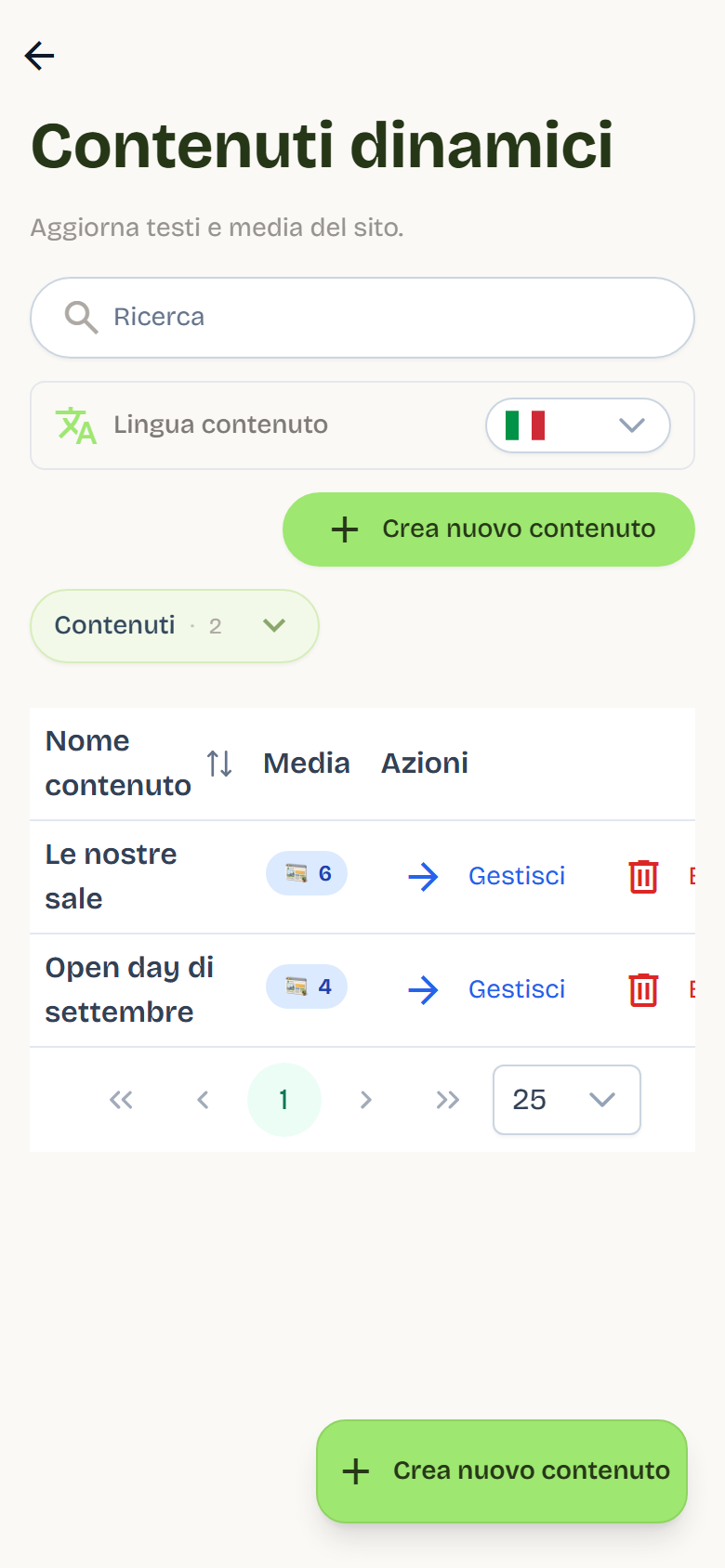
- The Dynamic content page lists content items with name, description, number of media and last-modified date. The default ordering is most recent first.
- Search filters by name and description in the selected language; in the list, the description shows the point where the search found a match.
- Create new content creates a content item. Media is uploaded after the first save.
- Saving immediately updates the content served to the site: dynamic content has no separate draft state.
- If you try to leave with unsaved changes, Flo shows the "You have unsaved changes" warning with the "Discard changes" button.
Details
- Content name: required, one version per active language.
- Description: formatted text editor, with images and links to attachments.
- The language selector at the top changes the language of the fields shown.
Media
- Up to 50 media per content item.
- Maximum media visible on the website: limits how many media the site shows, without limiting uploads. Leave empty to show all media.
- Hidden media stays in Flo but is not served to the site.
- The first media item is the main one.
- Each media item can have a caption per language.
Details on uploading, formats and limits are in Gallery.
Attachments
- Formats: PDF, DOCX, XLSX, PPTX, ZIP, TXT, CSV.
- Publicly visible: when enabled, attachments are visible and downloadable from the public site; when disabled they remain visible only in Flo.
- Attachments are reordered by dragging and deleted individually.
Configuration lock
The Flò team can lock the dynamic content configuration with Configuration complete.
- With the lock active, content items cannot be created, deleted or renamed.
- Editing texts, media and attachments remains available.
- Unlocking (Configuration locked) is done by the Flò team: if you need to create or rename a content item, ask support.
Version history
When history is enabled, each save creates a version that can be viewed and restored from the edit page. See Content history.
Difference from modules that generate new pages
Dynamic content updates already-planned sections of the site: it does not create new pages and does not generate new URLs.
Digital growth modules, such as Blog, Properties and Catalog, instead create new publishable and indexable pages.
Best practices
- Use one content item per site section: do not pile different sections into the same content item.
- Set the maximum number of media only if the site should not show everything.
- Hide a media item instead of deleting it when you want to remove it from the site temporarily.
- Check the selected language before saving.